SEO Content Audit: A Practical Framework For Creating Helpful Content That Google Wants To Rank
Jul 25, 2026

Without a doubt, I can guarantee that everyone who has ever browsed the internet has faced the ERR_CACHE_MISS error!
Generally, accompanied by the ‘Confirm Form Resubmission’ message, this error code is perhaps one of the most common ones, yet most of us don’t know how to resolve it.
But not anymore!
With my help – and my 6 effective solutions – you can definitely resolve this problem – and if you can’t, always come back for consultation. And that is precisely why I’m here to help you out.
Stay tuned.
If you have come across the message, ‘Confirm Form Resubmission’ on your screen while browsing the internet, then you definitely encountered the ERR_CACHE_MISS error.
This means that you are trying to open a website that needs data resubmission. But when this error keeps repeating, it points to existing problems with your web browser.
Moreover, incorrect configurations or cache issues can potentially trigger this resubmission error.
So, the possible causes behind the ERR_CACHE_MISS error are as follows:

Interestingly, the ERR_CACHE_MISS error is specific to Google Chrome.
Moreover, it typically occurs because of poor configurations and settings, inappropriate extensions, browser cache, or something similar.
Since this error shares more connections with the browser as compared to the operating system, it can take place in all versions, whether macOS or Windows.
Here, what you should factor in is not the device, but the browser you are using.
Moreover, in a majority of cases, this is an isolated incident related to a specific device that is accessing internet locations which have changed since the last time.
In that case, I have outlined individual fixes later in the article for you to apply.
Also, if this happens to be some sort of widespread incident, then you should take into account the following questions:
So, the first thing to do while dealing with this problem is to get an understanding of how widespread or serious the issue is.
And with my help, you should be able to do that easily:
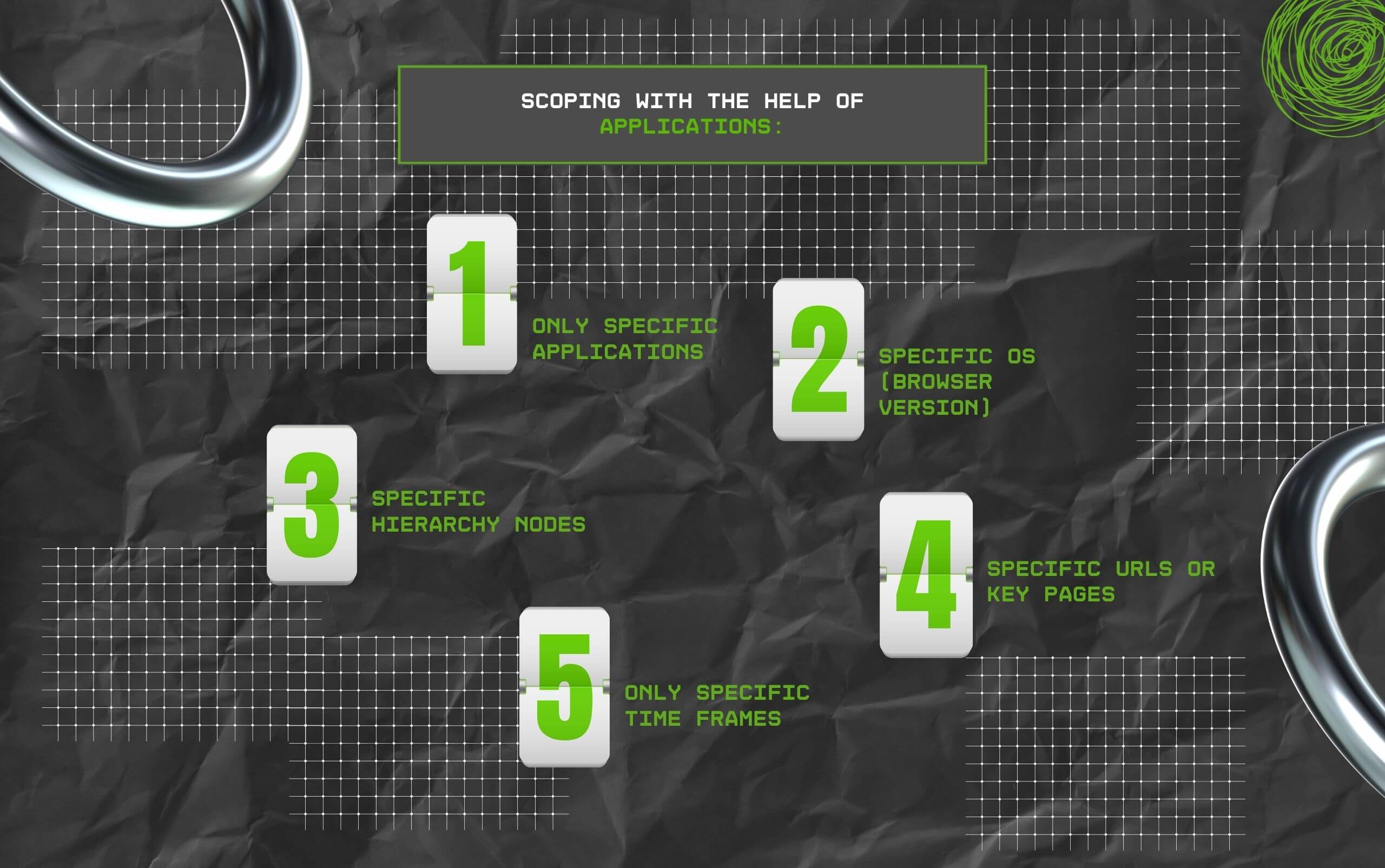
With the help of the Applications Reliability dashboard, you can check out the different breakdowns to filter them and find the various correlations.
For example, it is possible to find specific errors on:
In this example, you should attempt to gain an understanding of exactly what changed for a specific web application.
Has the browser version or OS changed? Or has the browser been recently updated?
With the help of DEX (Digital Employee Experience) management platforms, you can investigate and analyze the performance of different browser versions.
Why? To understand whether any specific version is facing the issue.
If any infrastructure component, like a proxy server, network change, or anything similar, is causing the issue, it is likely to be displayed by a particular area located within the hierarchy, accompanied by multiple errors.
Most likely, changes were made – but at the web application level. As a result, contacting the support team for the said application and informing them about the issue is your best shot.
Find out if this is only a one-time incident that needs clear investigation, or whether it’s a recurring problem in which some aspect of the network, corporate backup, for example, is changing the network availability.
Before I discuss effective ways to resolve this issue, remember that scoping the problem is your first step.
So, if you have already made it so far, I recommend going back – go through the scoping procedure carefully.
Once done, come back and check out the 6 most effective ways of resolving this issue.
Refreshing the web page is perhaps the fastest way to solve this error. Why? Because generally, this problem is temporary.
So, you just need to press the CTRL and F5 together to refresh – it works for most browsers. And in case it doesn’t, then check out the browser documentation if required.
If you have not cleared your cache in some time, it is possible that some of your files within the system might have gotten corrupted. As a result, clearing your cache will help you.
To do so successfully, choose the option to clear the standard date if you don’t want to lose your saved data, including passwords and other personalized information.
Also, you can access the remote options for clearing your browser cache on Chrome or Edge – ‘Clear Edge’ from ‘Chrome Settings.’
Moreover, you can remotely clear your cache in case it is not possible manually.
Additionally, it might also help you if you get rid of the DNS cache from the client’s side if it attempts to recover the webpage from a website that has moved.
In that case, you can always rely on Clear DNS Cache Remote Action to get this done.
You can quickly check whether the root cause of the problem is your browser version.
And you can easily do this from the ‘browser breakdown’ located in the ‘Applications reliability dashboard.’
In case the problem is your current browser version, then it is best to update your browser to the latest version. Also, it is a healthy practice to regularly update your browser.
In addition, if your organization uses SCCM and you can remove and install your browser with a task sequence, then you can use the ‘Task Sequence Remote Action’ or ‘Start Application’ to solve the problem.
Sometimes this error can take place after you have installed malware-oriented, inferior toolbars within the web browser.
So, just getting rid of these might solve the problem.
Google Chrome’s library pack can recover installed plugins and, more importantly, can exercise control over them, thanks to Chrome Policies.
Moreover, you can use it for clearing your settings and testing whether your browser is the latest version or is set to a specific version.
Additionally, this pack also features Remote Actions – you can use it for confirming the ‘Compliance of Chrome’ plugins for a specific version or level.
This can help you understand whether a plugin’s particular version is responsible for causing the issue.
Resetting Google Chrome to default mode might also help you solve the error. This is usually done by accessing your browser’s Advanced Settings.
Also, please note that when you close the website browser, you will lose all your saved bookmarks, configurations, autofill forms, and passwords.
Barsha is a seasoned digital marketing writer with a focus on SEO, content marketing, and conversion-driven copy. With 8+ years of experience in crafting high-performing content for startups, agencies, and established brands, Barsha brings strategic insight and storytelling together to drive online growth. When not writing, Barsha spends time obsessing over conspiracy theories, the latest Google algorithm changes, and content trends.
View all Posts

SEO Content Audit: A Practical Framework For ...
Jul 25, 2026
The Complete Guide To Free Rank Tracking
Jul 25, 2026
Maximizing B2B Reach: SEO for LED Power Suppl...
Jul 25, 2026
How Clinical And Reference Labs Should Choose...
Jul 24, 2026
Why MIB Browsers Are Valuable For Network Tro...
Jul 24, 2026