
SEO Dashboard: What To Track, What To Ignore, And How To Make It Useful
Sep 25, 2026


As a Google addict, I can tell you one thing – that most of us unanimously search in the same way – we type in the keyphrase, hit enter, and wait for the magic to happen.
But what if I tell you that you can skip the whole traditional search and refine your research and make it more specific?
Thanks to Google Advanced Search, you can improve how you search and obtain hyper-focused results with the help of search operators.
Moreover, you can literally find out what your competitor has published last week or even backlinking opportunities that you might have missed with the help of Google’s advanced search.
Are you somewhat surprised? Well, don’t be, because I am here to help you understand how to make the most of Google’s advanced search for better results.
Stay tuned.
With the help of Google Advanced Search, you can refine you can come up with precise queries as compared to traditional search since it helps users to research topics efficiently.
Moreover, academics and writers use it for exploring advanced subjects, while marketing professionals – like me – depend on it for thorough competitor analysis.
For instance, let’s say you are researching the best HR software solutions and want to check out sources based in the United Kingdom.
On that note, here’s the distinction between a normal search for the best HR software solutions and a Google advanced search focusing on the United Kingdom and websites with the .uk top-level domain.
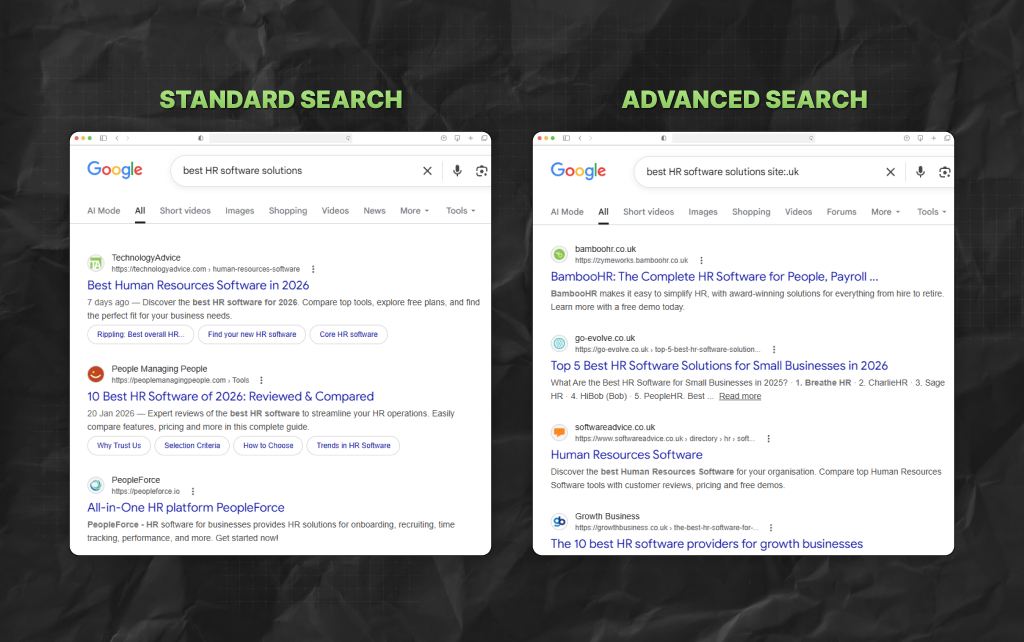
Moreover, you can perform an advanced search in the basic Google search bar with the help of search operators – I’ll cover that in later sections.
TBH, in all cases, Google’s advanced searches are great for helping users find webpages that are relatively more relevant to their research goals.
For doing advanced search on Google, just go to your web browser and type ‘google.com/advanced_search.’
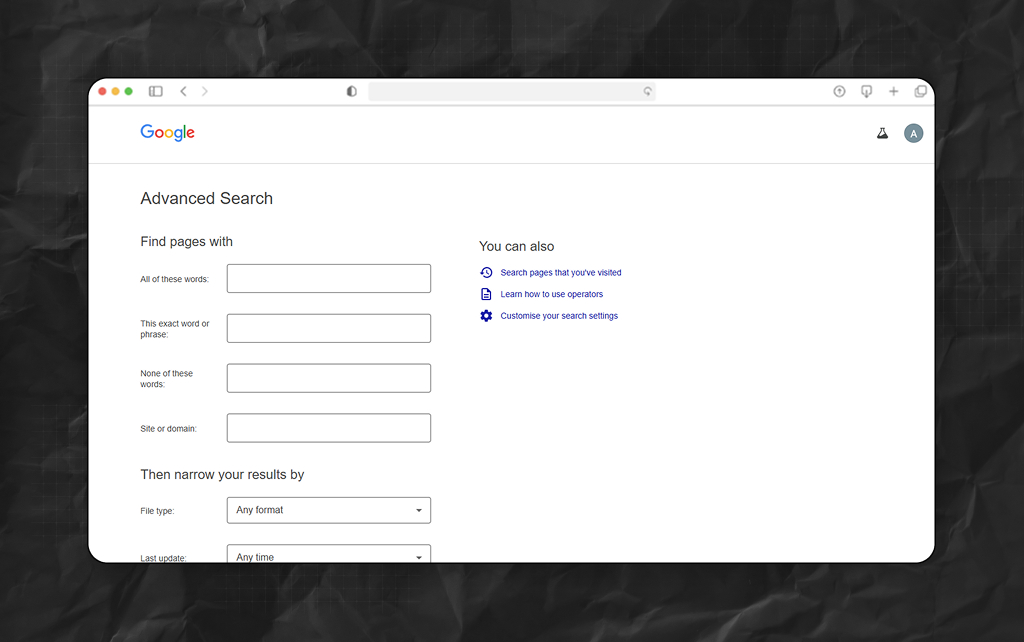
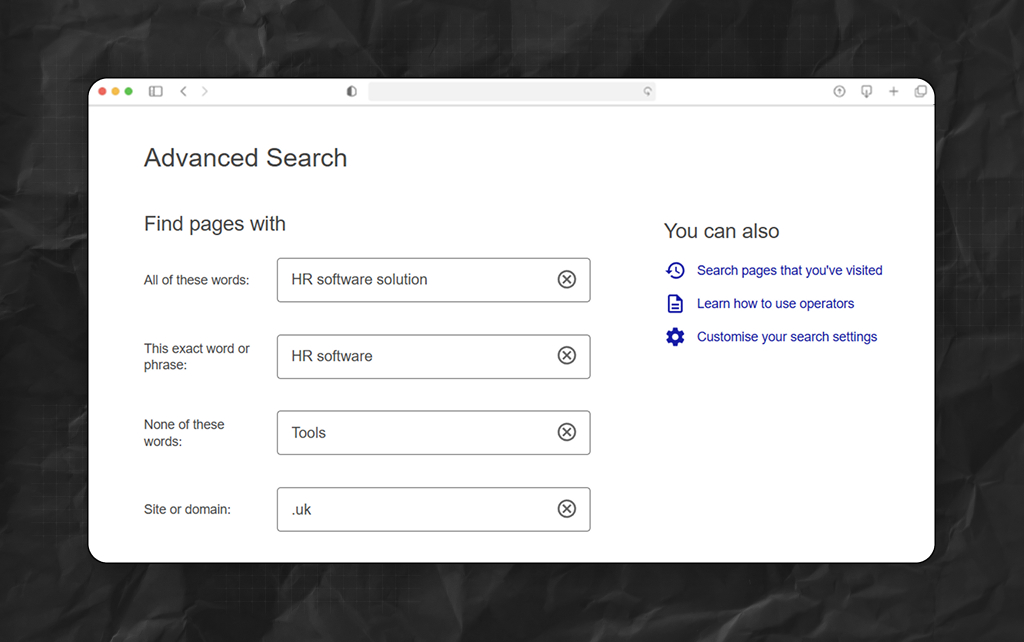
Now, complete the section called ‘Find pages with…’ to improve your search in terms of specific subtopics or terms.
Also, you can consider filtering out phrases or words you do not want to find results for.
Then, just scroll down, and you will find a section called ‘Then narrow your results by…” – from the drop-down menus here, you can select additional filters.
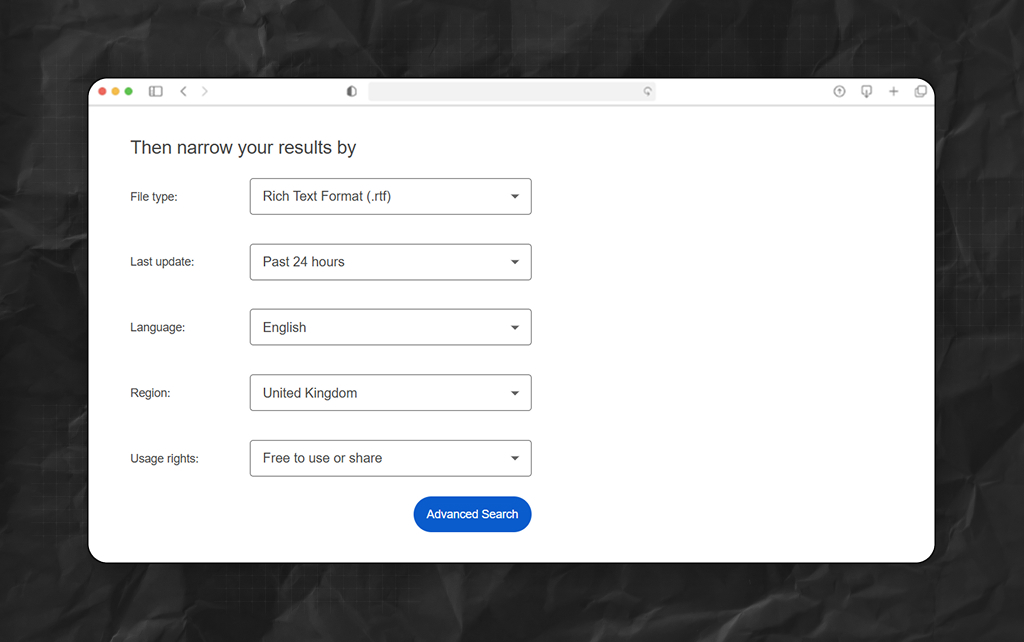
So, you will see that you filter results by:
Finally, just tap on ‘Advanced Search’ once you are done.

ASOs, or Advanced Search Operators, are symbols and special characters that users can add to the normal search bar of Google for more specific results.
For instance, one search query can include three primary operators:
So, these operators inform the search engine giant to find pages that contain the exact matches of the keyphrase – best HR software solution, in this case – but not the pages that talk about the different tools in the market.
On that note, here are the four most significant reasons behind using search operators.
A few simple search operators can make Google searches far more precise, especially when you are trying to find something specific instead of scrolling through endless unrelated results.
So, here are some of the most useful ones:
As a result, it is obvious that these operators are simple, but they can save a surprising amount of time once you start using them regularly.
Then there are some other search operators that can help you look for specific source types or sites.
So, just type these search operators either after or before your topic of research in the normal search bar on Google for the best results.
Digital marketing professionals can take the help of search operators for researching competitor websites.
For example, to find how comprehensively your competitor covers specific topics, opt for a “site:[competitor site] [topic]” search.
Also, you can use a tool like Ahrefs or Semrush to do a thorough competitor analysis. When you enter the URL of a domain, you need to choose the location and tap on ‘Search.’
As a result, Semrush or Ahrefs will immediately show you:
There are some search operators that can help a marketing professional find websites for backlink opportunities and general link building.
If a Google Advanced Search does not return the result you have been looking for, then you can try out techniques important for refining your search results.
For starters, reorder keyphrases, look for related keywords, or try different variations.
Moreover, you can take the help of keyword modifiers and make your search query precise and specific.
Also, you can check out the section under related searches to understand how other people have been researching the same topic.
While doing so, don’t forget to check AI Overviews and other SERP eatres like PAA (People Also Ask) for quick results.
Additionally, you can cross-reference data and insights by going through results from different search engines.
Barsha is a seasoned digital marketing writer with a focus on SEO, content marketing, and conversion-driven copy. With 8+ years of experience in crafting high-performing content for startups, agencies, and established brands, Barsha brings strategic insight and storytelling together to drive online growth. When not writing, Barsha spends time obsessing over conspiracy theories, the latest Google algorithm changes, and content trends.
View all Posts

SEO Dashboard: What To Track, What To Ignore,...
Sep 25, 2026
Analytics SEO: How To Turn Search Data Into B...
Sep 25, 2026
AI Search Tools: What They Actually Measure A...
Sep 25, 2026
FAQ Schema: When It Still Makes Sense And Whe...
Sep 25, 2026
The Keyword With 10 Searches That Sent Ahrefs...
Sep 24, 2026