
The Ultimate Guide To Competitor Backlink Analysis: An Actionable SEO Blueprint To Steal Your Rivals’ Traffic
Oct 23, 2026


Once your network performance starts lagging, it is common to ignore all the random background operations responsible for triggering the delay in the first place.
And tackling such specific IT issues isn’t an easy job for most of us.
But very early on in my career, I realized that learning how to solve some basic IT and admin issues can prove to be excellent knowledge.
Moreover, knowing how to resolve some petty IT issues early on can help you stop annoying, minor lags from transforming into a widespread connectivity problem.
Even during a significant software deployment, some basic DNS bottlenecks can make a solid application appear broken.
As a result, the first step towards resolving such a problem is identifying what is making the DNS lookup stall.
And that is precisely why I am here with my blog on how to fix slow DNS lookup.
In this detailed blog, I will breakdown how you can accurately measure the latency of DNS, while outlining actionable steps that you can follow to fix it.
Stay tuned.
Before making any assumptions about problem rising from a broad application or network, it is crucial to have an understanding of where issues related to DNS latency usually occur.
More importantly, you need to know how it can appear within a real-world environment.
For instance, in a corporate network, a DNS delay is usually layered but internal, with multiple minor inefficiencies adding up behind the noticeable delays.
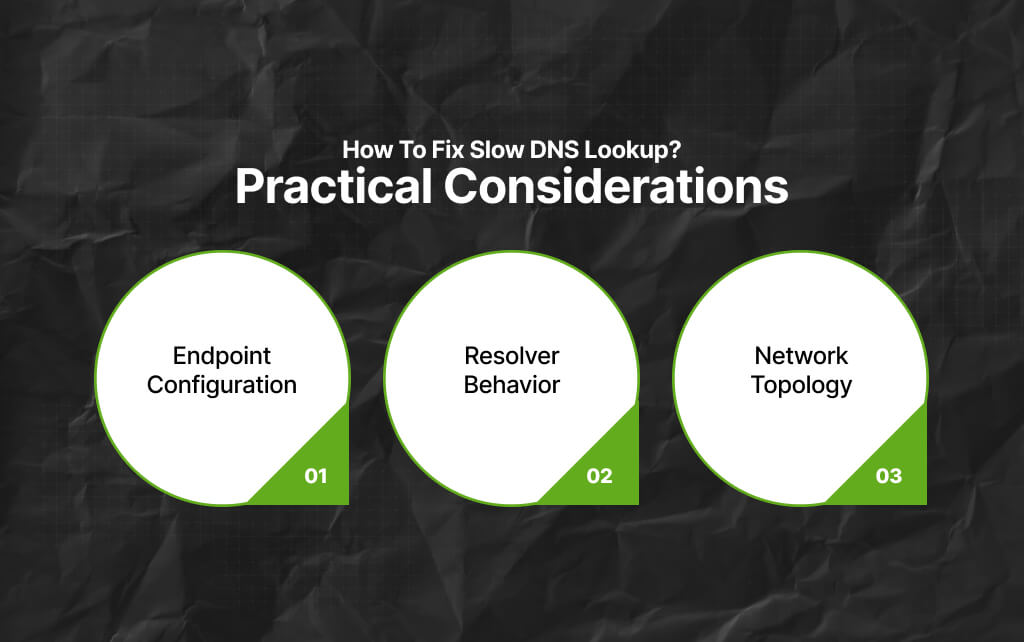
In this context, it is crucial to point out that slow DNS lookup usually appears within three primarily internal areas, with each area impacting performance differently.
Endpoint configuration introduces delays when a DNS server is unreachable, overridden, or misordered by security software or VPN.
For instance, Windows devices may pause for several hundred milliseconds before switching to a secondary DNS resolver if the primary server fails to respond.
So, when this delay happens repeatedly across multiple DNS requests, it can noticeably slow down overall network performance and page-loading times.
DNS resolver performance becomes especially important when internal DNS servers are overloaded, lack efficient caching, or rely on very low TTL settings.
As a result, in these situations, the resolver is forced to repeatedly request information from upstream servers instead of delivering responses directly from its local cache.
Poor caching behavior increases latency, creates unnecessary network traffic, and slows down overall response times.
According to research by Google, well-optimized DNS caching can reduce lookup times by anywhere from 30% to 80%, significantly improving browsing and application performance.
Network topology slows down DNS resolution when questions take unnecessary or indirect routes.
Configurations such as split-DNS environments, hairpin routing between locations, or DNS traffic passing through multiple proxy layers introduce additional network hops before a query is resolved.
Each extra step adds latency to the lookup process, which can slow down application performance and increase the time required to resolve domain names across the network.
This is important.
For beginners, the general idea is that DNS lookup time is measured only on network devices or servers.
But it should be ideally measured where all of us literally experience it.
As a result, for better clarity on the matter, I’ve added some industry benchmarks in this context.
On this note, performance research by Google highlights how DNS delays make up for 20 to 30% of the overall page loading time – and that too, for first visits.
Moreover, the most significant signal here happens to be a comparison. So, if your DNS has slowed down, but your TLS and TCP setup are fast, then your limiting factor is the DNS.
As a result, high variability or repeated spikes matter more in comparison to a slow average.
Delays in DNS lookups generally happen because the user’s computer is either using cache information that is outdated, requesting the wrong server, or waiting for way too long for a server that fails to respond.
TBH, I have two effective methods that almost always work – check them out, and get in touch with me if you face issues while fixing your slow DNS lookup.

So, let’s assume you work from a single personal computer. Also, you can access the network settings from your personal computer.
In that case, this method is the right option for you. Moreover, it is easy, visual, and does not require any actual scripting.
1. Tap on the Ethernet icon or Wi-Fi located in the taskbar.
2. From here, choose ‘Settings.’
3. Now, select the ‘Network and Internet’ option.
4. Tap on ‘Properties.’
5. Scroll and stop at ‘IP Assignment.
6. Now, click on the option to ‘Edit.’
7. Switch the settings to ‘Manual’ from ‘Automatic.’
5. Then, turn on IPv4.
6. Here, enter the DNS servers:
7. Finally, save your changes before reconnecting to your network.
Most devices automatically use DNS servers provided by an internet service provider, but these servers can become congested during periods of heavy traffic and may not always deliver the fastest response times.
Switching to public DNS services such as Cloudflare or Google can often improve performance.
These providers operate large global networks with distributed server infrastructure positioned closer to users in different regions.
As a result, DNS requests travel a shorter distance and are more likely to be answered quickly from high-performance cached records, reducing lookup delays and improving browsing speed.

PowerShell is commonly used in enterprise and managed IT environments because it allows administrators to troubleshoot and resolve DNS-related issues across multiple systems without manually changing settings on each device.
Moreover, using automated scripts and remote management capabilities, IT teams can quickly:
This, in turn, makes DNS management far more efficient in large environments.
1. Go to your search bar and search for PowerShell.
2. Then, tap on the ‘Run As Administrator’ option.
3. Find out which particular DNS server is being used by your computer. For this, you can just copy and paste the specific command in PowerShell: Get-DnsClientServerAddress.
(Please Note: This will feature the DNS servers that your computer or device is checking first. Also, it helps to identify outdated or misordered servers – like old VPN resolvers – known for causing delays.)
4. Measure how long any DNS lookup usually takes. So, if you find a slow response, it highlights that DNS, instead of the site or your internet, is the actual source of delay. In that case, you have to copy and paste another command in PowerShell: Measure-Command { Resolve-DnsName www.google.com }
5. Then, copy and paste another command into PowerShell: Clear-DnsClientCache. This will help you to clear cached DNS information. In this context, it is crucial to mention that it is absolutely safe to do so – and while doing that, you won’t lose files, passwords, or personal data.
Managing hundreds or dozens of computers is already difficult. On top of that, chasing down DNS problems one after the other is only going to make things worse.
As a result, PowerShell or similar platforms can help you to cruise ahead – with these platforms by your side, you can spot the issues even before someone notices their internet is running slow.
Moreover, these platforms can manage your endpoint – all of them – in real-time.
That way, you will know if multiple devices are hitting some old VPN server or the resolver happens to be misconfigured.
So, you can have clarity of the patterns and issues without doing guesswork on what is wrong.
Additionally, some platforms even come with an AI Copilot, which makes the whole process of fixing very seamless.

For anyone managing multiple networks, offices, or even computers, here are some additional steps and advanced tips that you can check out for improving the overall DNS performance.
Also, note that these tips are a little more advanced in comparison to the manual and PowerShell methods I discussed earlier.
However, if followed properly, these tips can make a major difference in your reliability and speed.
So, if your present DNS server is overloaded, far away, or slow, then switching to any well-peered private or public DNS provider will improve performance.
In this context, the most popular options are:
Many DNS servers operated by internet service providers rely on centralized infrastructure, which can become overloaded during peak traffic periods.
This congestion may introduce delays of roughly 200 to 500 milliseconds for individual DNS lookups, especially when multiple requests are being processed simultaneously.
Public DNS services, including those offered by Cloudflare and Google, typically use anycast routing technology.
With anycast, DNS queries are automatically directed to the nearest available server location, reducing travel distance and improving response times for users in different regions.
DNS caching controls how long a computer, browser, or server keeps a website’s IP address stored locally before requesting the information again from a DNS server.
The TTL (Time to Live) value defines how long these cached records remain valid across different parts of the network.
So, when caching and TTL settings are configured properly, systems can reuse stored DNS information instead of performing repeated lookups for every request.
This helps reduce unnecessary DNS traffic, improves response times, and speeds up website access while still ensuring records are refreshed often enough to avoid outdated or incorrect routing information.
Moreover, Cloudflare reports that well-planned TTL configurations can cut recursive DNS traffic by as much as 50% while still allowing websites and services to update normally.
Reducing unnecessary recursive queries lowers network overhead, improves DNS response efficiency, and decreases load on upstream resolvers.
This approach is particularly valuable in environments with large volumes of DNS activity, such as multi-location office networks, SaaS-dependent organizations, and microservices-based infrastructures where applications continuously communicate across distributed systems.
Of course, it is super easy to fix one computer that is running slow.
But the challenge arises when you have to maintain consistent performance across a complete enterprise-level IT environment.
This is where platforms like Atrea RMM, NinjaOne, SuperOps, and Syncro will offer you visibility and insights in real-time – you will know what’s happening with every single device that is on your network.
As a result, you can spot a resolver issue even before someone can complain about their slow internet.
Moreover, most of these platforms come with an AI copilot, especially Atrea RMM – this AI copilot can easily deal with all the heavy lifting.
That way, you won’t have to run from one desk to another. The point? With the right tools and platforms by your side, you can maintain a fast network without too much manual grind.
Read Also:
Barsha is a seasoned digital marketing writer with a focus on SEO, content marketing, and conversion-driven copy. With 8+ years of experience in crafting high-performing content for startups, agencies, and established brands, Barsha brings strategic insight and storytelling together to drive online growth. When not writing, Barsha spends time obsessing over conspiracy theories, the latest Google algorithm changes, and content trends.
View all Posts

The Ultimate Guide To Competitor Backlink Ana...
Oct 23, 2026
How To Land High-Authority Editorial Backlink...
Oct 23, 2026
Why Your Website Traffic Dropped Suddenly And...
Oct 23, 2026
How Do The Physical Google Review Tools Redef...
Oct 23, 2026
How To Get Your Brand Cited In AI Search Resu...
Oct 22, 2026