Enterprise Search Guide: Modern Knowledge Management & Internal Data Discovery
Nov 03, 2026


When you learn how to create a group on WhatsApp, you set up a powerful communication tool that supports up to 1024 contacts and uses end-to-end encryption by default.
This means your company information, files up to 2GB, and media will stay secure.
However, if you open a chat and don’t set up your security options, you risk losing control of your professional channel and turning it into a chaotic, unprofessional group.
The key to successfully managing your channel is setting up the correct administrative permissions.
To create a group on WhatsApp, follow these quick steps:
Important Security Step: Secure the room instantly by opening the group’s profile header, tapping Group Settings, and toggling off Edit Group Settings to prevent unapproved member changes.
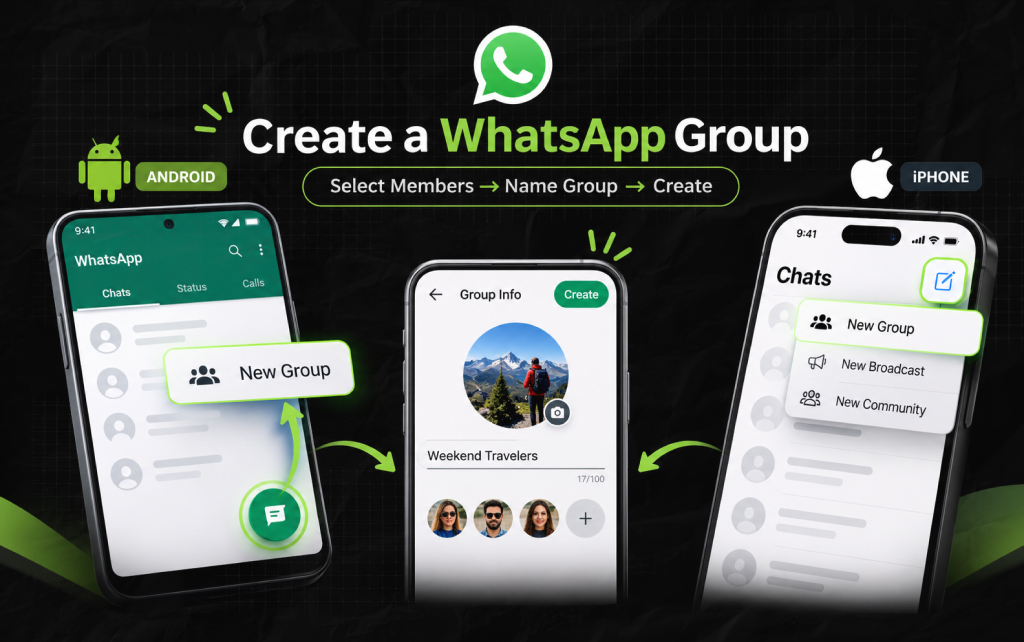
Because Android and Apple operating systems have different layouts, we will take you through how to create a group on WhatsApp for both.
Here’s what you can do:
Chats Screen > Green Chat Bubble Icon > New Group > Tag Members > Green Arrow
Here’s what you can do:
Chats Screen > Square Compose Box > New Group > Tag Members > Next
Once you’ve selected your initial contacts, your Android and iOS devices will take you to the final stage of creating your group. Complete the following steps:
Type in your group’s official name.
Please note there is a character limit of 100 characters in the title field, so make it simple and easy to identify.
After that, click the empty camera icon. You can take a new photo, upload from your photo library, and use an emoji or sticker combination.
If you are inviting people for short-term projects or sharing sensitive information, click this option. Furthermore, set your message to disappear after 24 hours, 7 days, or 90 days.
Click the green tick circle on Android or the Create text button on iOS to activate your group chat.
| Configuration Element | Android Operating System | Apple iOS Platform |
| Primary Menu Target | Green floating button (bottom right) | Square compose box (top right) |
| Creation Selection | Tap New Group at top list row | Tap New Group below search text |
| Forward Navigation | Click the green circular check arrow | Click the text link reading Next |
| Final Activation Key | Click the green checkmark asset | Click the text link reading Create |
Also Check: Leveraging WhatsApp API and Chatbots for Effective Customer Retention
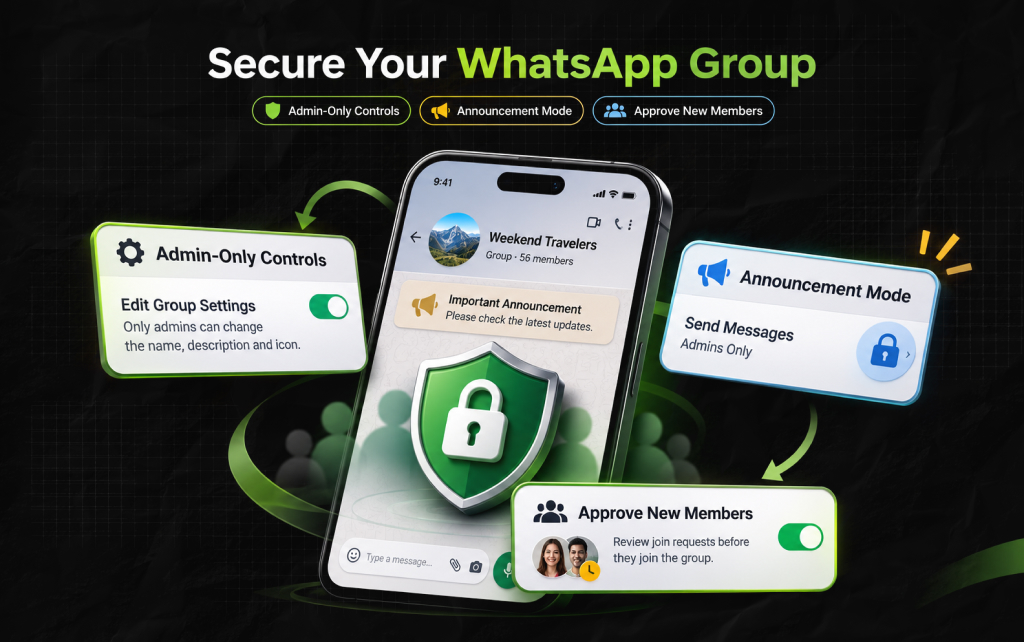
Now that you know how to create a group on WhatsApp, you may not realize your group is fully open by default. Everyone you invite will have administrative rights.
They can change your group name and icon and add anyone they want. Secure your group to stop this.
First, click your group name at the top of your group. Scroll down and click Group Settings (or Permissions if applicable to your version).
Second, click Edit Group Settings and turn this off. Only admins will be able to change the name, description, and icon.
If you want to send company announcements, policies, or alerts without people chatting, send messages to a read-only group.
Within your Group Settings, click Send Messages. Then you can switch from All Participants to Admins Only.
The text box will lock straight away for all members. This will give you a super efficient announcement board.
If you wish to have full control over who joins your group, click the Approve New Members toggle and turn this on.
This will stop any new users from joining your group using the group link or QR code. Moreover, they will be added to a waiting list until an admin approves them.
You May Also Like: The 10 Best ChatGPT Plugins You Must Use In 2025 For Better SEO!
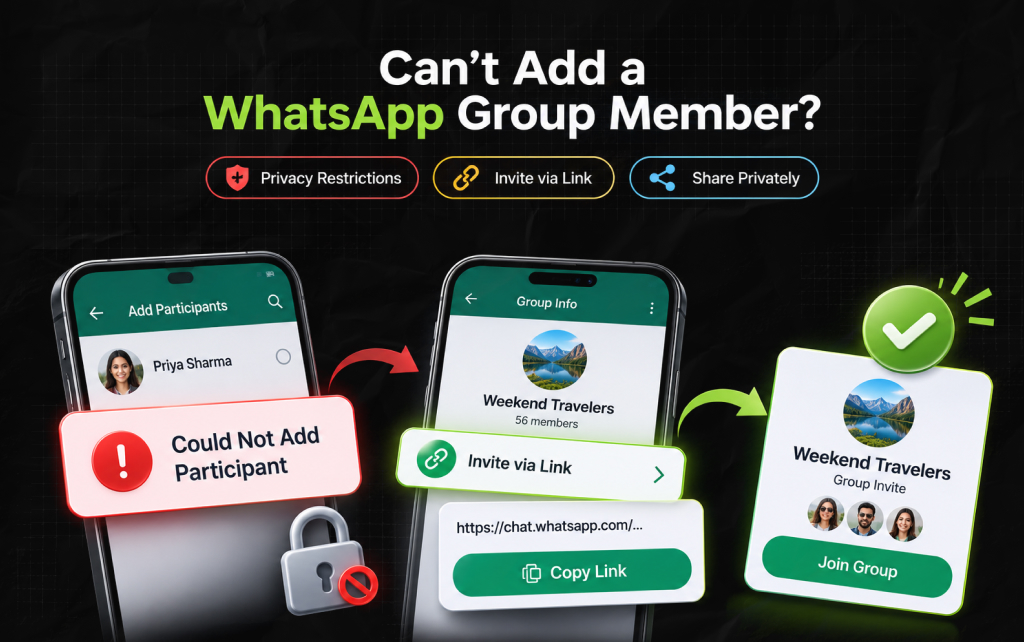
A common issue is trying to add a new colleague or client to your group, only for the app to show an error message saying “Could Not Add Participant.”
This is rarely due to connection issues; it’s usually due to the person’s security settings.
In Settings > Privacy > Groups, they can set their account to stop automatic group invitations.
If they have set their profile to “My Contacts or My Contacts Except…,” you will not be able to add them.
Don’t keep adding people to your group, as this can trigger anti-spam features and flag your number. Follow the steps below:
[Group Name] > Invite Via Link > Copy Unique Link > Send Via Private Message
When they click the link, they will be taken to a secure page showing the group name, icon, and member count.
After that, they will have 72 hours to click Accept to join. And then two basic conditions:
Most people will only search how to create a group on WhatsApp when they need to set up a large meeting or manage a community.
However, one of the best ways to manage your tasks is to create a separate solo group.
This can act as a personal whiteboard.
You can use this to save links, boarding passes, record voice notes for quick brainstorming, or to preview messages before sending to clients.
This will easily sync between your desktop apps and browser.
So you won’t have to worry about losing anything, since it’s backed up to the cloud. There will be no monthly charges.
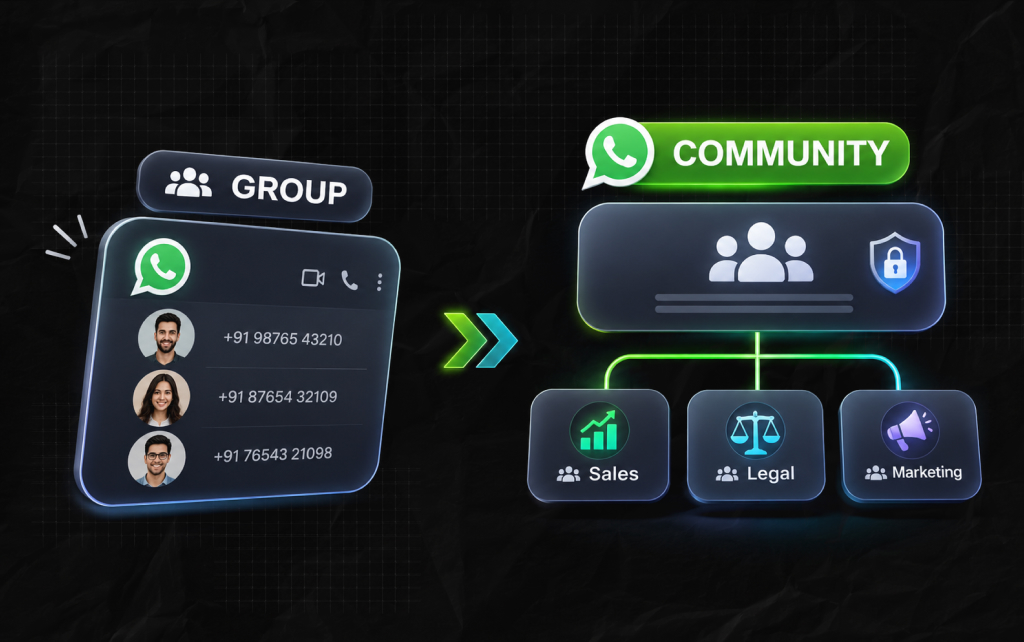
If you don’t choose the right option for your company, it can cause communication issues.
Below is the difference between a standard group and a WhatsApp Community.
This is a great option for small teams, local projects, and standard social groups.
All members can view each other’s phone numbers and can chat unless an admin restricts it.
This is used as a parent group for multiple subgroups.
For example, a real estate company could create a main Community for their company with subgroups for the following:
The main advantage of using a Community is that it hides phone numbers from members.
However, admins can still send company-wide announcements.
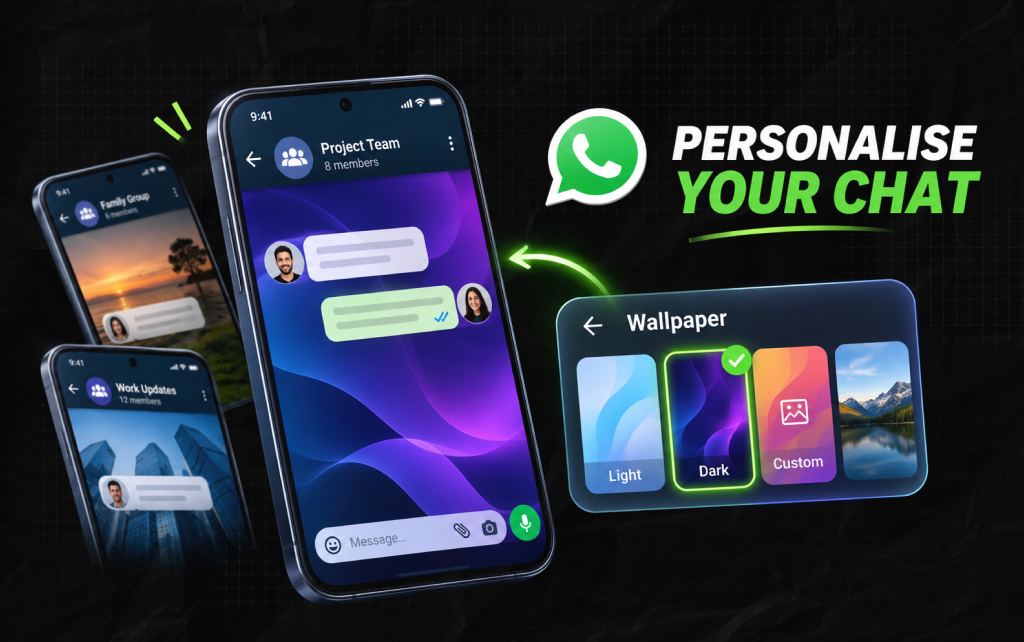
Giving your chats a personalised style makes it easy to identify the different conversations you have with different projects. That way, you won’t accidentally send any important information or text to the wrong conversation.
Change your Background
If you are an Android user, open your group and tap the three dots in the top-right corner of your screen. Then, press the option that says Wallpaper.
If you are an iPhone (iOS) user, open your group and press the text headline banner. Then scroll down and select Wallpaper & Sound.
Once it is done, you need to select the background you want, such as light, dark, or colored backgrounds, or upload your own image from your phone. Press Set wallpaper.
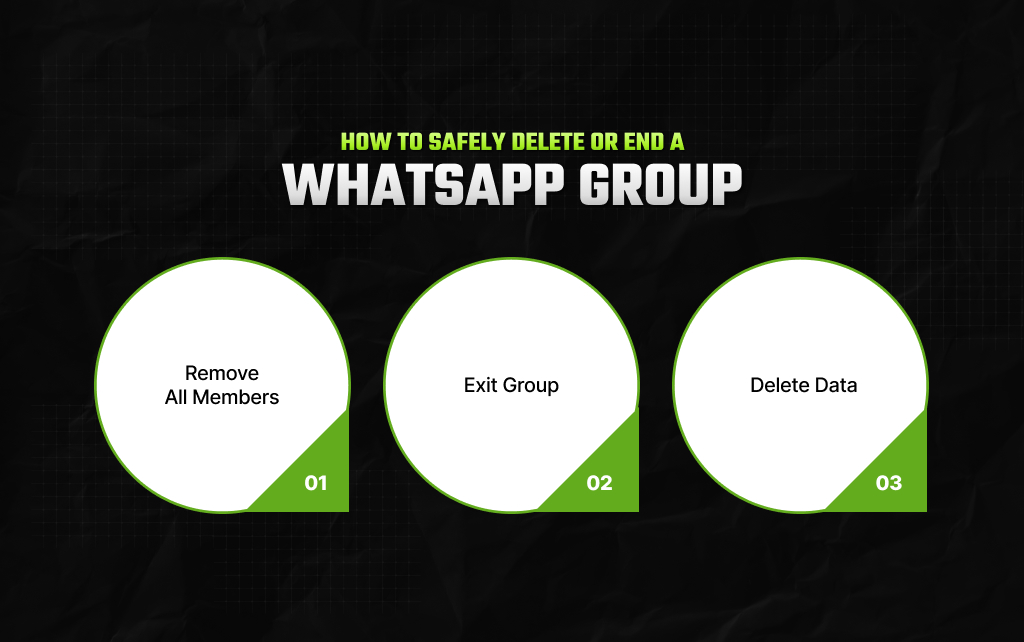
If a project within your company has come to a close, or you have finished a casual event, it is best to delete/finish the group to avoid unnecessary data clutter.
As the owner/administrator of the group, you will need to follow the steps in order to delete the group.
Clicking the exit button will not delete the group for everyone; it will only remove your profile.
So, you can just delete in 3 Easy Steps:
Open your group options. Scroll down to your member list. Press each member individually and select Remove. This will stop any previous members from chatting in the group.
Once there are no members in your group, scroll down and click on the large red text that says Exit Group.
After you click the exit button, the buttons will change. Press Delete Group to fully delete the group and all chat logs and media.
Piyasa is a search engine marketing strategist who has spent the last six years decoding Google's ever-changing mind. From corporate giants to neighborhood storefronts, she helps businesses cut through the digital noise and actually get noticed online. When she isn’t building SEO strategies or writing the latest search industry breakdowns for Search Engine Magazine, you can usually find her hanging out with friends - and gently reminding them that no, she cannot personally fix the latest algorithm update for them.
View all Posts

Enterprise Search Guide: Modern Knowledge Man...
Nov 03, 2026
The Enterprise Framework: How To Measure AI P...
Nov 03, 2026
The Ultimate AI Showdown: Is GPT 5.3 Codex Or...
Nov 02, 2026
Glean AI Pricing For Enterprise Search 2026: ...
Oct 31, 2026
Decoding Copilot Cost: The Ultimate 2026 AI P...
Oct 31, 2026