
Google Looker Studio: What It Is, How It Works, And How To Use It For Better Reporting
Sep 30, 2026
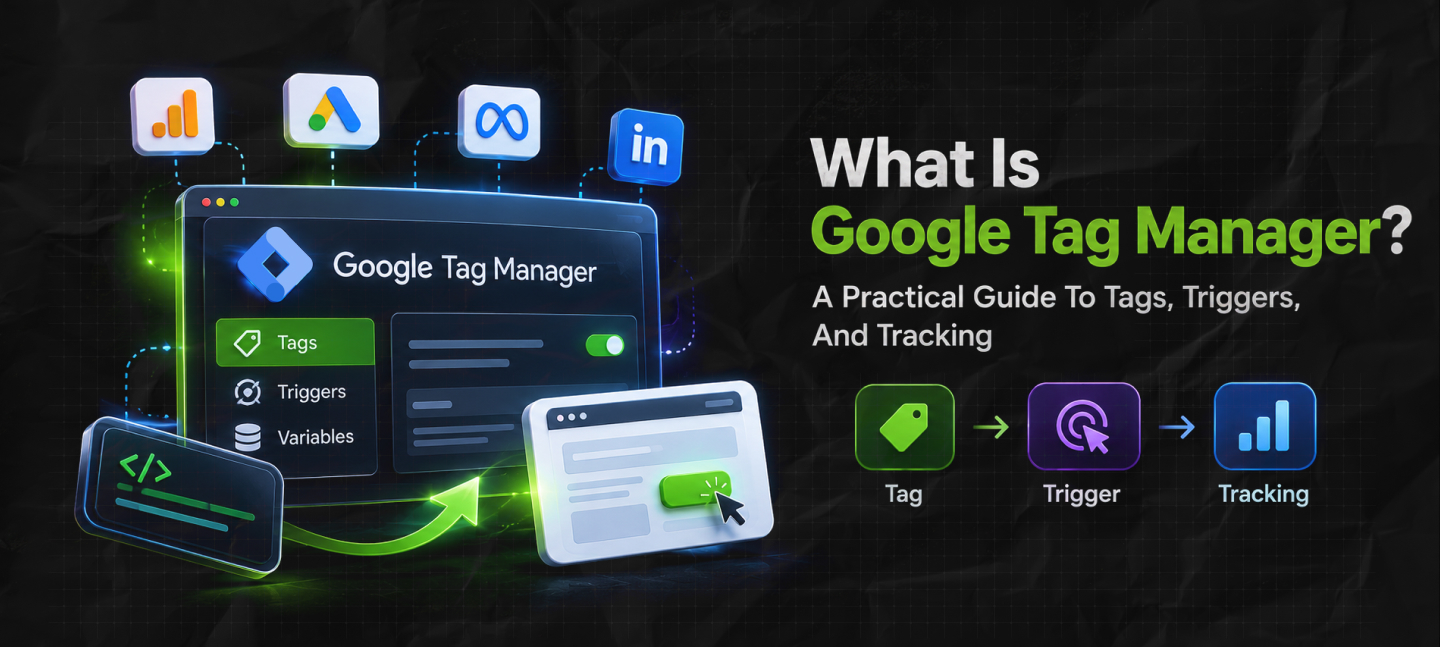

Website tracking can become messy surprisingly quickly.
You start with Google Analytics. Then someone asks for a Meta Pixel and the marketing team wants to track form submissions.
Then someone wants to know how many people clicked the pricing button, and some other platform needs its own tracking code.
Before long, developers are being asked to add small pieces of JavaScript to different parts of the website.
Google Tag Manager was built to make that process easier. But GTM is often misunderstood as an analytics tool.
TBH, it is not your usual analytics tool. Rather, GTM happens to be a system that you can use to manage and deploy marketing and tracking tags on an app or a website.
And frankly, this distinction is essential. Why? Because GTM doesn’t tell you how your site is actually performing.
Instead, it only helps you to control and track the code that shares information with advertising, analytics, and other platforms.
On that note, today, I’ll discuss what is Google Tag Manager in detail and share my go-to practical guide for tags, triggers, and tracking.
Stay tuned.
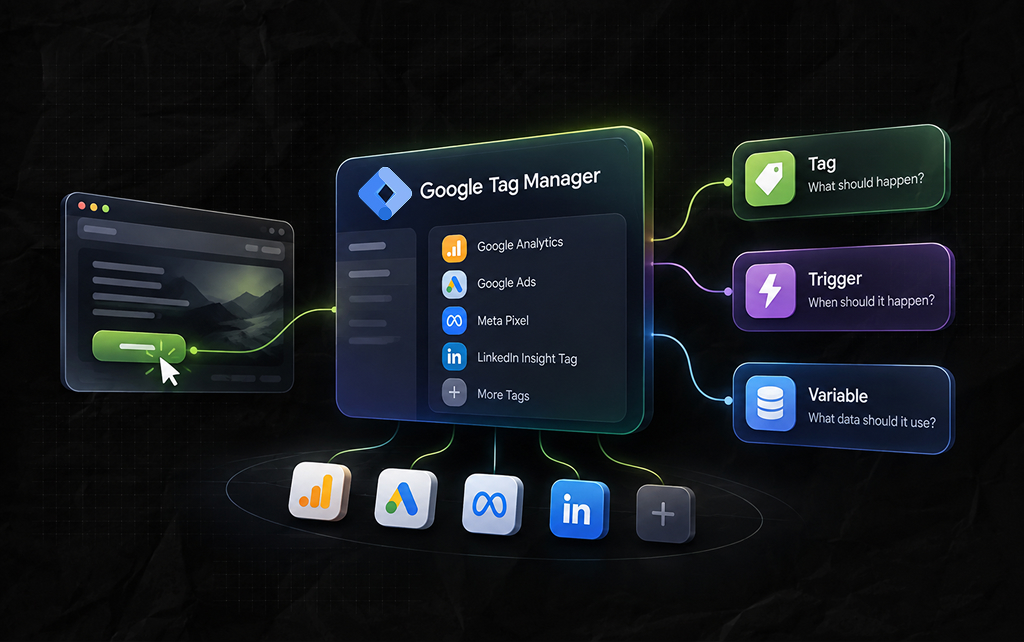
Google Tag Manager, i.e., GTM, is Google’s tag management system.
With GTM, you can add and manage snippets of code, A.K.A tags, through a central interface instead of adding each one to the source code of your site manually.
For example, you might use GTM to deploy:
Also, TBH, the important point is that GTM does not replace these platforms. It acts as the layer that helps you deploy and control their tracking code.
So, you can think of it as a control panel for website tags.
A tag is a piece of code that runs and performs an action.
That action could be sending information to Google Analytics, recording a conversion for an advertising platform, loading a marketing script, or doing something else the tag is designed to do.
Now, imagine you have a tag for Google Analytics that sends an event when a user submits a contact form.
Then, the tag itself answers, ‘what should ideally happen?’ and GTM then needs to know, ‘when should it happen?’ That is where triggers come in.
A trigger determines when a tag should fire. As a result, you can configure a tag to fire when someone:
So, for instance:
This creates a simple relationship: User action → Trigger → Tag fires → Data is sent
And that is the basic logic behind GTM.
Variables provide additional information that tags and triggers can use. For example, a variable might contain:
Now, suppose you want to track clicks on links leading to your pricing page. A trigger could use the clicked URL as a condition.
The variable gives GTM the information it needs to determine whether the condition has been met.
Also, a useful way to think about the three main GTM components is:
Naturally, once that model makes sense, GTM becomes much easier to understand.
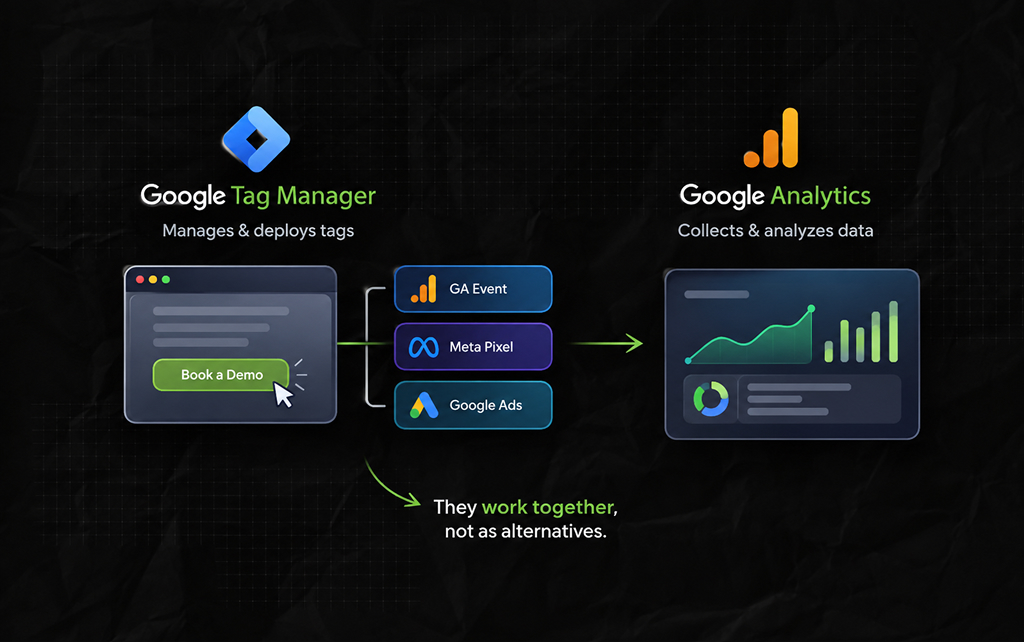
This is one of the most common points of confusion. Google Analytics and GTM do different jobs.
So, while Google Tag Manager manages and deploys tags, Google Analytics collects and analyzes website data.
For example, you might use GTM to configure a Google Analytics event when anyone clicks a ‘Book a Demo’ button.
Then, Google Analytics receives that event and makes the resulting data available for analysis.
Moreover, you can actually use GA without GTM. Also, you can use GTM to deploy tracking for platforms other than Google Analytics.
So GTM is not an alternative to Analytics. They often work together.
Not really.
Google Analytics can be installed directly on a website. Also, GTM simply gives you another way to manage the implementation.
It becomes particularly useful when a website has multiple tracking requirements or when marketing teams need to make frequent tracking changes.
So, for a very small website with one simple analytics implementation, GTM may not provide much additional value.
But, for a larger marketing operation, centralized tag management can become extremely useful.
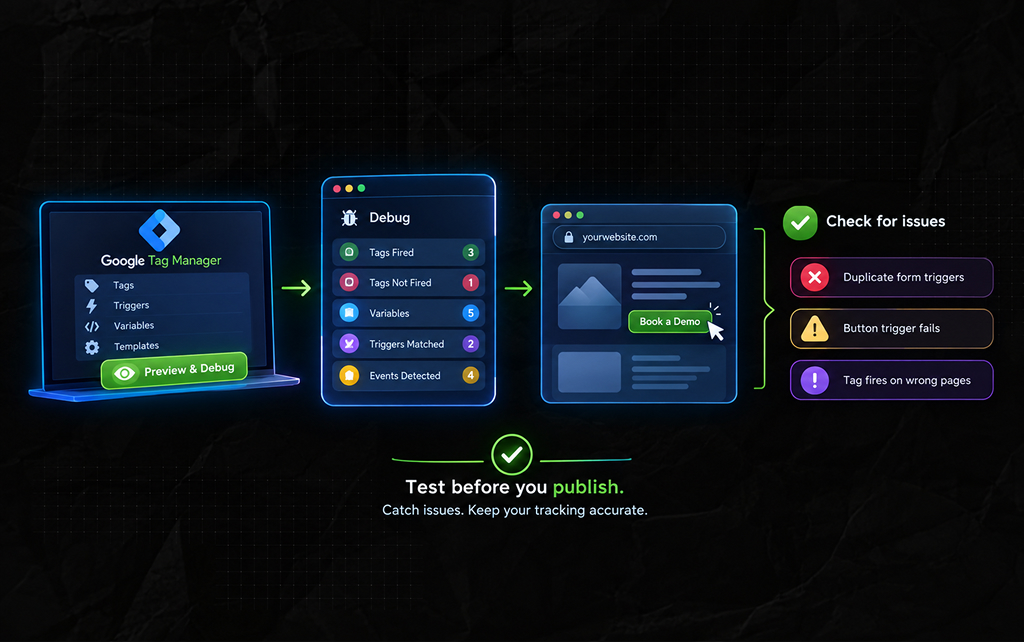
One of GTM’s most useful features is its preview and debugging capability. Before publishing changes, you can test how tags behave on the website.
Moreover, you can check:
This is important because a tracking implementation can look correct in the GTM interface and still behave incorrectly on the website.
For example, a form trigger might fire twice. A button trigger might fail because the site’s HTML changed. A tag might fire on pages where it should not.
As a result, testing will actually help you identify such issues before the changes go live.
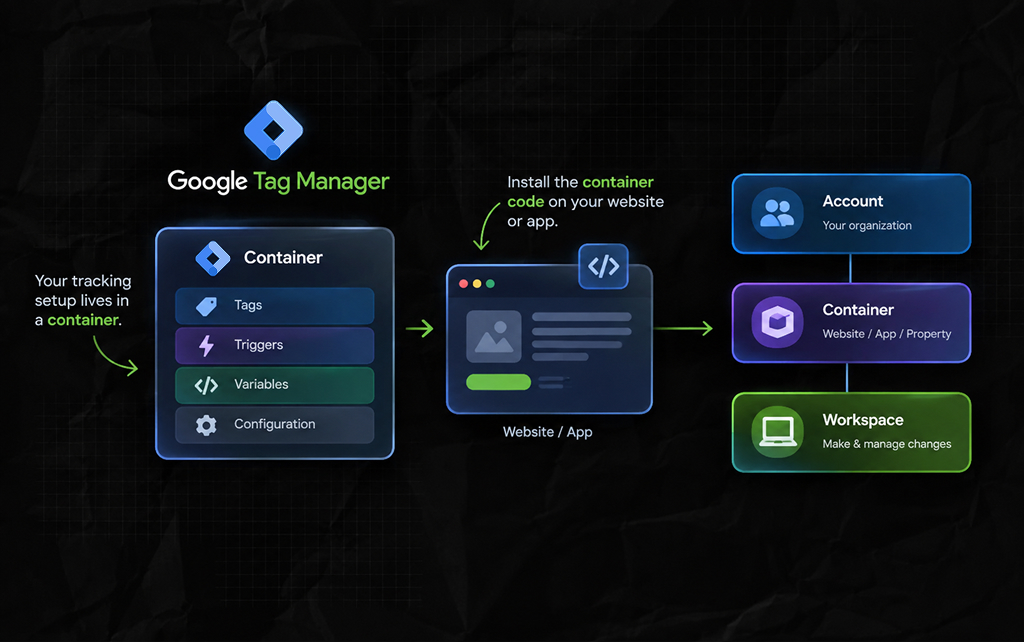
So, when you create a setup for GTM, you are working inside a sort of container. A container holds the tags, triggers, variables, and related configuration for a website or app.
Then, you install the GTM container code on the relevant property.
Once installed, GTM can load the tags you’ve configured within that container. Frankly, the container becomes the central place where your tracking implementation is managed.
TBH, GTM does have an interesting hierarchy. But I’ve seen it tends to get really confusing initially.
So, at a high level, it appears to be something like, ‘Account → Container → Workspace.’
In that case, if I break it down for you, an organization can have a GTM account.
A container can represent a website, app, or other digital property depending on the implementation.
Also, a workspace is where you make and organize changes before publishing them. This structure is useful when multiple people are working on tracking.
Additionally, it makes version management easier than having everyone directly edit website code.
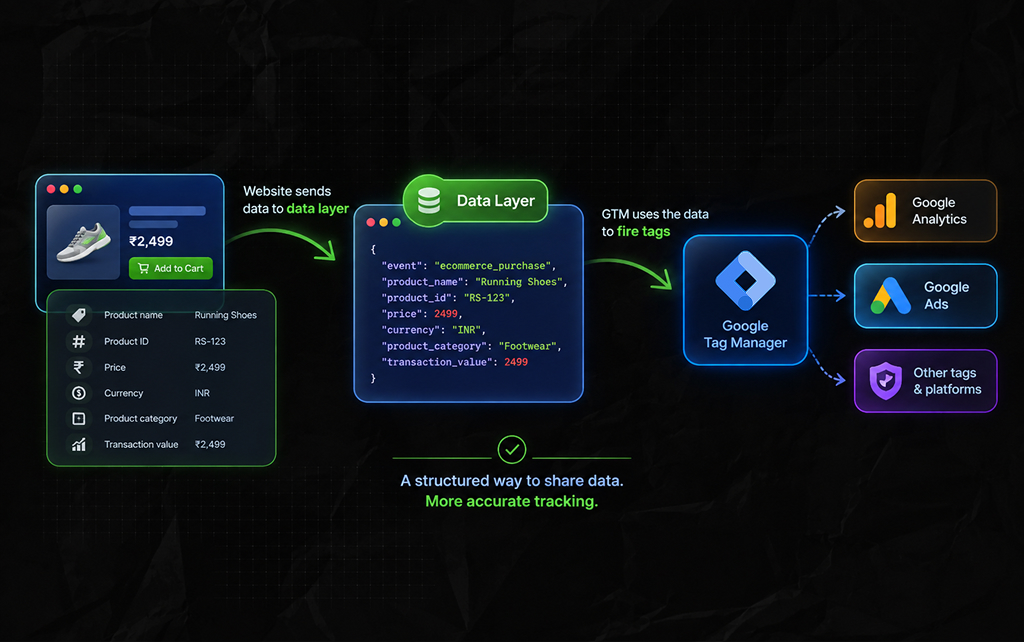
So, a data layer happens to be one of the more powerful concepts in GTM. It provides a structured road for a site to make information available to GTM.
For example, an ecommerce site might send information such as:
Then, GTM can use that information when firing tags.
This becomes much more reliable than trying to infer everything from button text, URLs, or the visible page.
Also, for simple tracking, you may not need to work directly with the data layer.
But for complex websites, especially ecommerce sites and web applications, understanding the data layer becomes much more important.
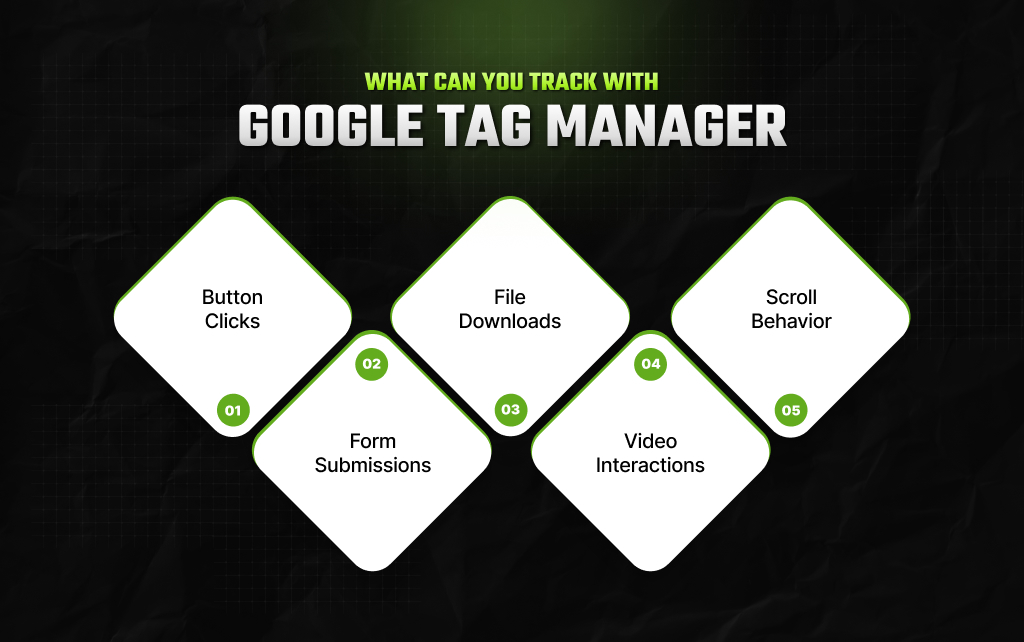
The answer depends on what the website exposes and what the relevant platform supports. On that note, the most common examples include:
So, you can track interactions with important buttons such as:
You can track when users successfully submit forms.
But be careful here.
Also, a form submission should ideally represent a successful submission, not simply a click on the submit button.
Otherwise, failed submissions can be counted as conversions.
You can track downloads of:
This can be particularly useful for content marketing.
Frankly, depending on the video platform and implementation process, you can use GTM to monitor interactions. This includes progress points, completions, and beginnings.
You can track whether visitors reach certain portions of a page. But scroll depth should not automatically be treated as a meaningful engagement KPI.
As a result, someone scrolling 90% of an article does not necessarily mean they found it useful.
The tracking capability and the business interpretation are two different things.
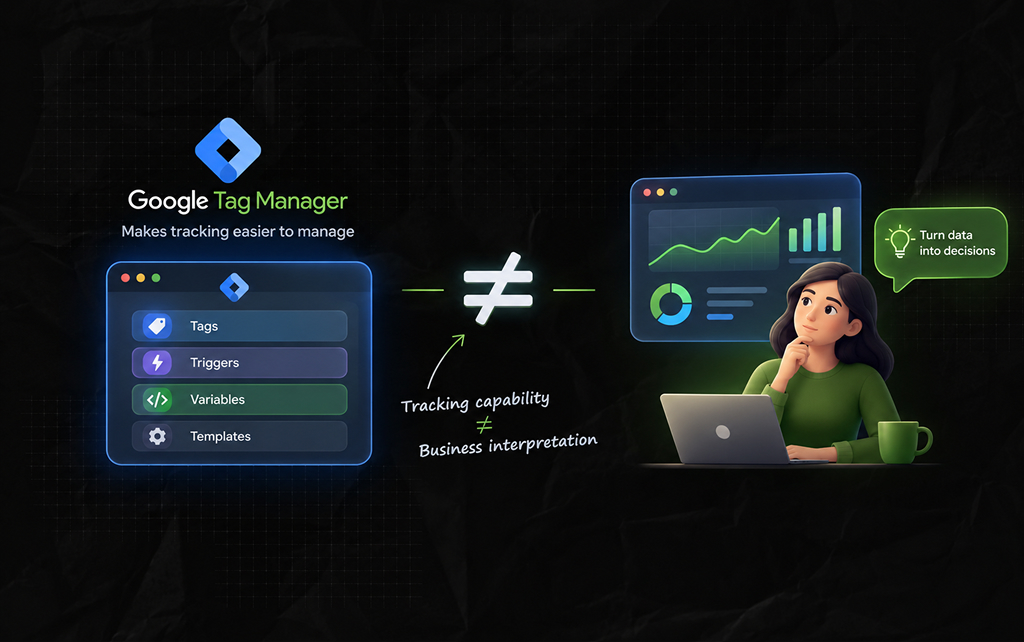
This is an important distinction.
Installing GTM does not suddenly create better analytics. You can build a beautifully organized GTM container and still collect poor-quality data.
For example:
GTM makes tracking easier to manage. It does not remove the need for a tracking strategy.
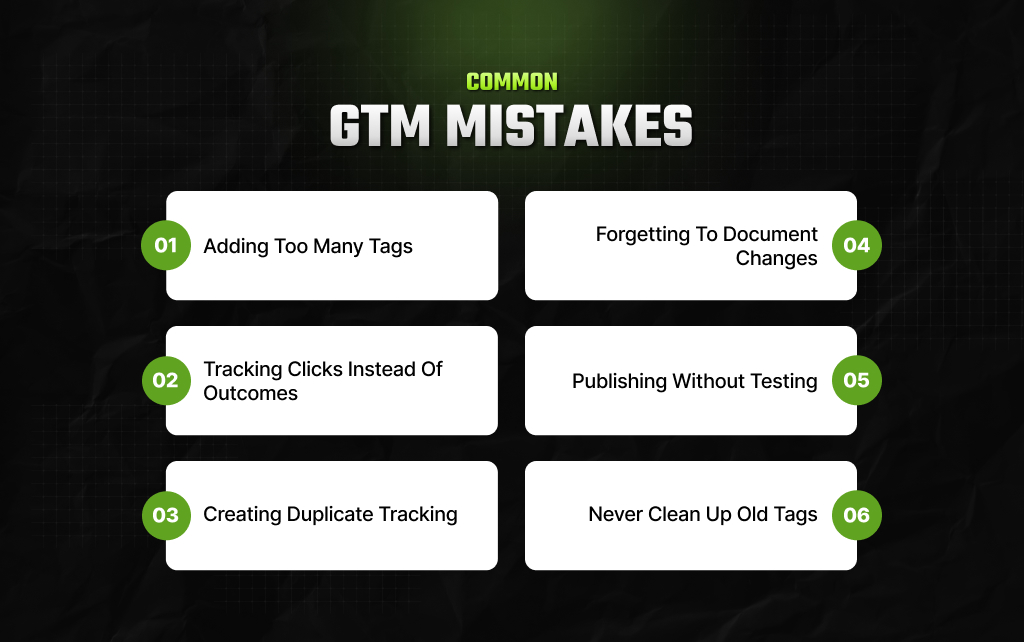
Honestly, I’ve seen these GTM mistakes being made so frequently that I had no choice but to discuss them.
Every additional tag adds another piece of tracking logic to maintain. So, if nobody knows why a tag exists, it probably should not remain indefinitely.
A click on a form’s submit button is not necessarily a successful form submission. As a result, you should track the actual outcome wherever possible.
A website may accidentally load the same advertising or analytics tag through both the site’s code and GTM.
That can result in duplicate events or inflated numbers.
Tracking implementations can become difficult to maintain when nobody knows why a tag exists. Instead, use clear naming conventions and descriptions.
A small configuration mistake can affect large amounts of data. So, it’s best to preview and test changes before publishing them.
Campaigns end. Platforms change. And tracking requirements change.
An old tag that remains active can continue collecting or sending data long after anyone remembers why it was installed.
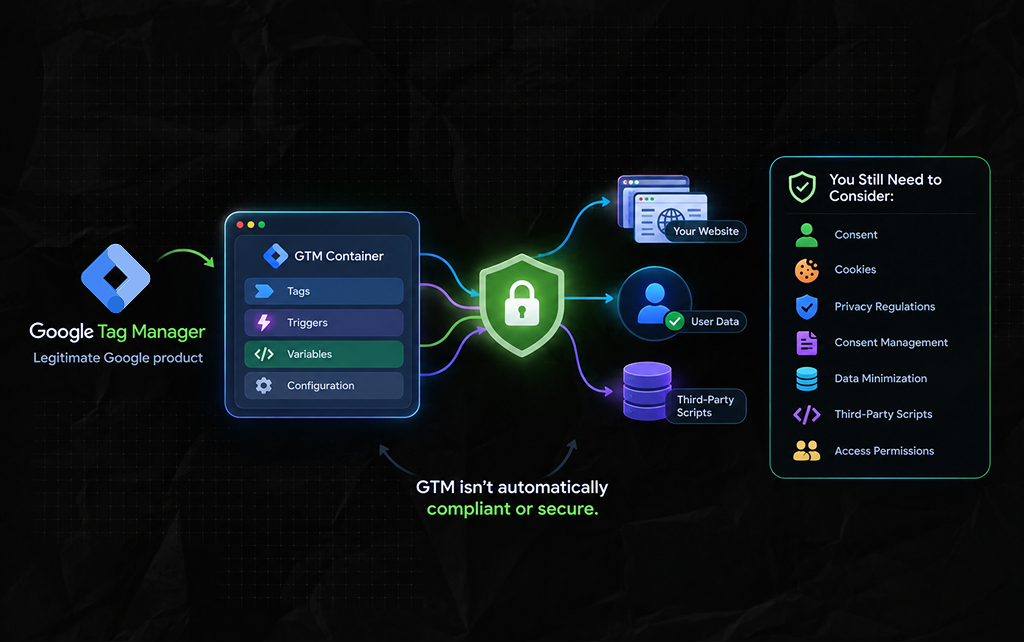
GTM itself is a legitimate Google product.
But the tags you deploy through it can affect what information is collected, where that information goes, and how scripts behave on your site.
That means you should treat GTM implementation as part of your broader privacy, security, and analytics setup.
Depending on where your users are located and what information you collect, you might need to consider:
Moreover, GTM does not make a tracking setup compliant simply because the tags are managed through Google’s interface.
Additionally, compliance depends on what you collect, how you collect it, where it is sent, and the laws and policies applicable to your organization.
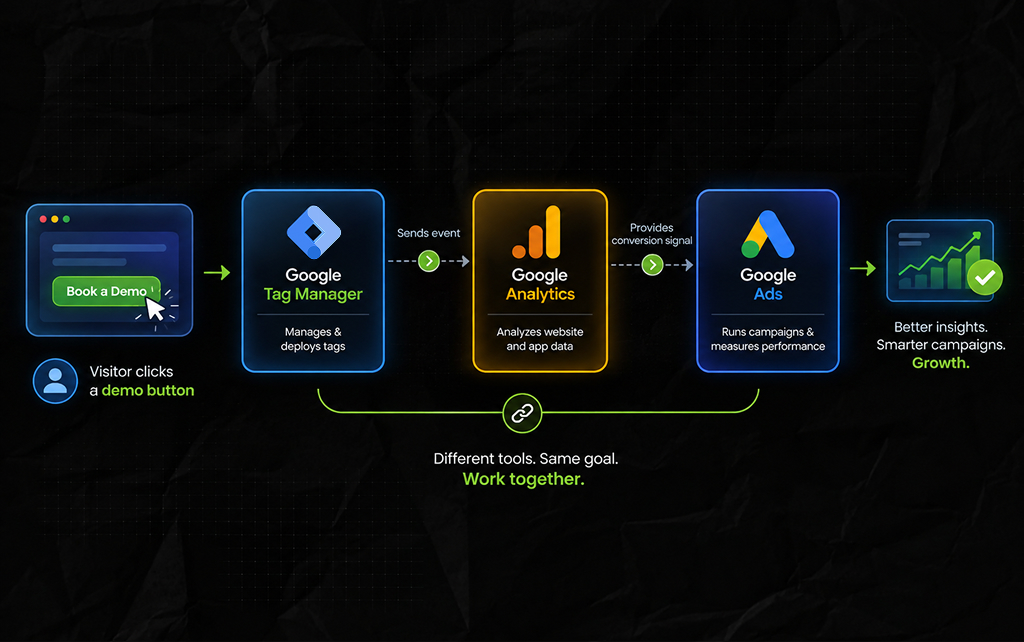
So, my decade long experience in the search landscape tells me that these tools can work together, but they have different roles.
| Tool | Main purpose |
|---|---|
| Google Tag Manager | Manage as well as deploy tags |
| Google Analytics | Analyze website and app data |
| Google Ads | Run advertising campaigns and measure advertising performance |
Now, suppose a visitor clicks a demo button. GTM detects the interaction. Then, GTM shares an event with Google Analytics.
If configured appropriately, the action can also be used as a conversion signal for Google Ads.
As a result, you can understand that the tools can work in tandem – and that too seamlessly. But neither can replace the other.
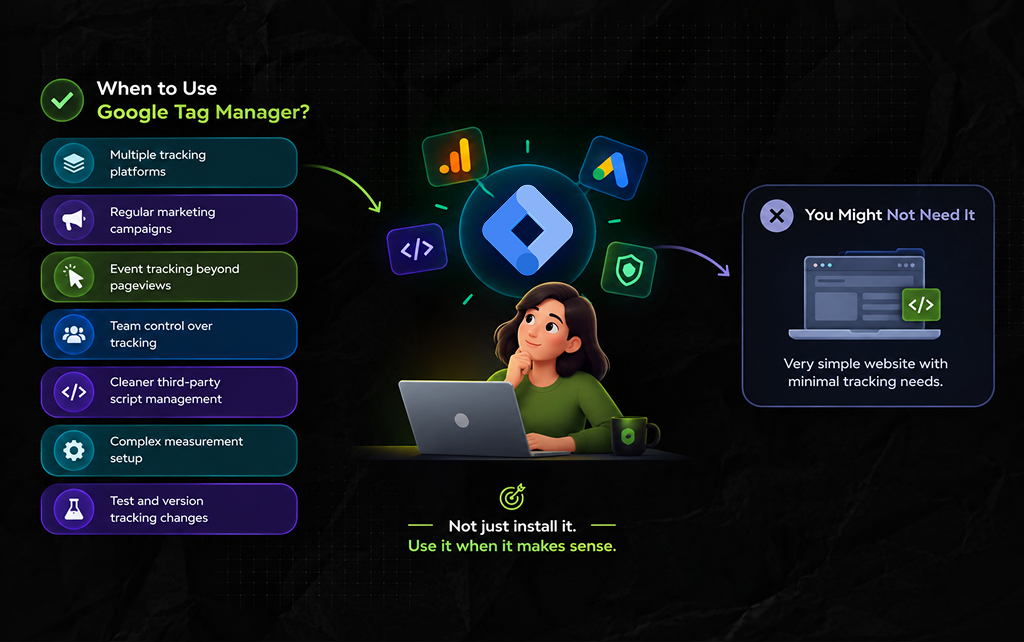
GTM becomes especially useful when:
Also, you may not need it for a very simple website with minimal tracking requirements.
Remember, the goal is not to install GTM because every website ‘should’ have it.
The goal is to make tracking easier to manage without turning your website’s codebase into a collection of unrelated tracking snippets.
GTM becomes much easier to understand when you stop thinking about it as an analytics platform.
So, you can think of it as the traffic controller for your tracking setup.
The website generates actions. The data layer and variables provide information. Triggers identify when something happened.
Then, tags respond by sending information to the relevant platform. Analytics and advertising platforms then process that information.
As a result, your entire flow looks like this: User action → GTM detects it → Tag fires → Platform receives data → You analyze the result.
That is the core idea.
Frankly, Google Tag Manager does not tell you whether your website is successful. Instead, it helps you build the tracking infrastructure needed to answer that question.
That makes it particularly useful for websites where measurement has grown beyond a basic analytics installation.
But GTM works best when you treat tracking as a system, not a collection of tags.
The real value of Google Tag Manager is not having fewer lines of tracking code on your website.
Instead, it is about having a more organized, testable, and maintainable way to manage how your website sends data to the tools you use.
Read Also:
Barsha is a seasoned digital marketing writer with a focus on SEO, content marketing, and conversion-driven copy. With 8+ years of experience in crafting high-performing content for startups, agencies, and established brands, Barsha brings strategic insight and storytelling together to drive online growth. When not writing, Barsha spends time obsessing over conspiracy theories, the latest Google algorithm changes, and content trends.
View all Posts

Google Looker Studio: What It Is, How It Work...
Sep 30, 2026
SEO KPIs: Which Metrics Actually Tell You If ...
Sep 30, 2026
SEO Dashboard: What To Track, What To Ignore,...
Sep 25, 2026
Analytics SEO: How To Turn Search Data Into B...
Sep 25, 2026
AI Search Tools: What They Actually Measure A...
Sep 25, 2026