Can You Screenshot On Instagram Without Them Knowing? The Honest Answer
Nov 04, 2026

Windows Update errors can slow your system, prevent critical security updates from installing, and leave your system vulnerable to threats.
So, how to fix Windows Update errors?
Issues in operating systems can affect your data security. Thus, it’s important to resolve issues correctly.
This guide provides an enterprise-level solution to resolve Windows Update errors while keeping your YMYL data secure and following best practices.
Whether you’re facing a cryptic error such as 0x80070002, 0x800f081f, or 0x80240020, or stuck in an endless loop saying ‘Undoing changes made to your computer‘, this guide will help get your system back to optimal performance.
Understanding how the update mechanism works will help you identify why your update has failed.
Windows updates don’t just download files; they rely on several components.
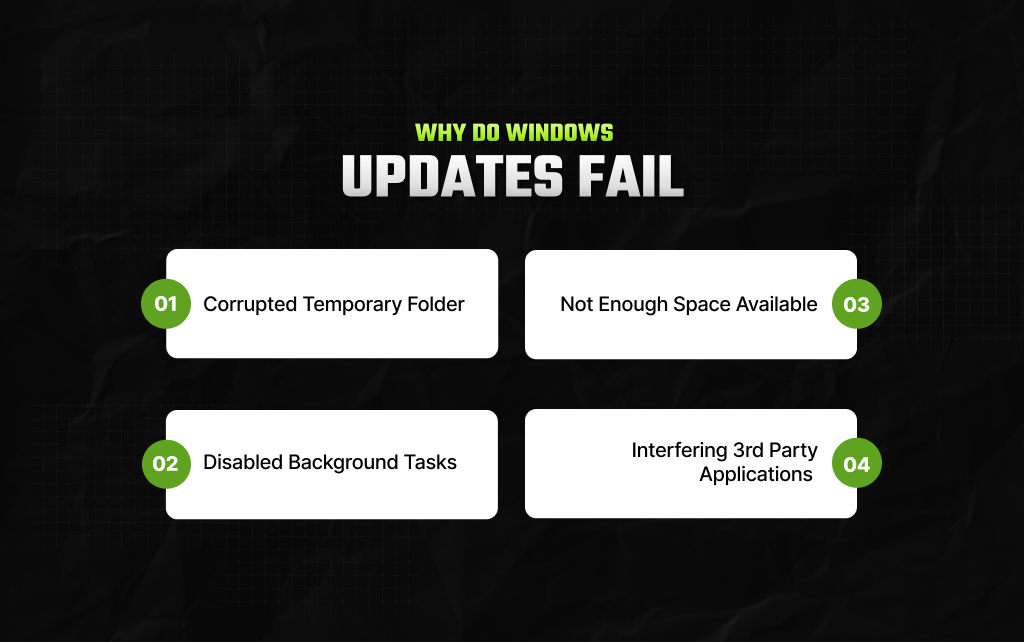
If your update has failed halfway through, it’s usually due to one of the following reasons:
When downloading updates, Windows will temporarily place the files in a folder called SoftwareDistribution.
If connectivity or power is unexpectedly lost, the files can become corrupted.
When you attempt to install updates again, Windows will struggle to read the corrupted files.
Windows updates heavily rely on the Background Intelligent Transfer Service (BITS).
If system optimization tools or 3rd-party applications have disabled these background tasks, your system won’t be able to download new updates.
Updates need space to download, extract, and back up your previous system files. If your drive doesn’t have enough space, the update will automatically fail.
Many aggressive Antivirus, Virtual Private Network (VPN), or system-cleaning tools will wrongly identify legitimate background processes as a threat and prevent the connection to Microsoft.
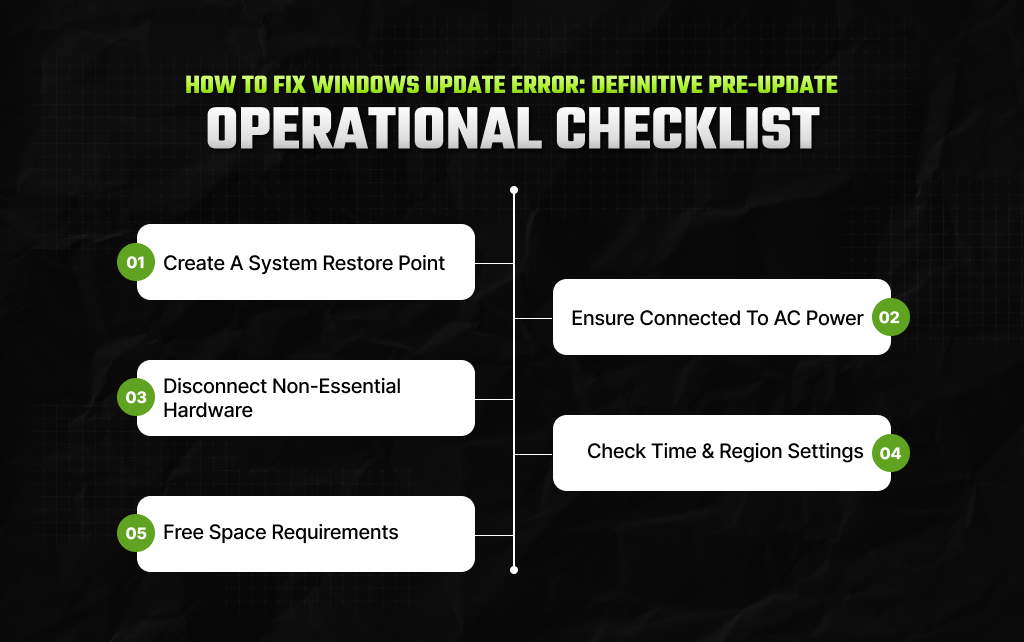
Before making any changes, take a few basic precautions to keep your files safe and prevent outside interference from causing errors.
A System Restore Point will act like a safety net. Open your Start Menu and search for ‘Create a restore point’.
Select your primary drive and click Create. If anything goes wrong, you can easily revert your system to this point in time.
Never attempt large updates on your laptop while running only on battery power.
If your laptop loses power mid-way through a configuration, it can cause serious issues with your system files.
Unplug any printers, webcams, secondary hard drives, gaming controllers, and docking stations from your USB ports.
Only keep your mouse, keyboard, and monitor attached.
If your time is incorrect, your security servers will refuse to allow your computer to update.
Open Settings > Time & language > Date & time. Ensure the ‘Set time automatically’ and ‘Set time zone automatically’ options are switched on. Click the ‘Sync now’ button.
One of the most common reasons an update fails is not having enough storage space.
Depending on the type of update you’re attempting, you’ll require a certain amount of free space.
You may Also Love To Read: What Is Software huzoxhu4.f6q5-3d? Your Efficiency Buddy Is Here!
One of the most common, hidden reasons for an update failure is simply not having enough storage space.
Different updates require different amounts of hard drive space to complete successfully.
| Update Classification | Minimum Workspace (32-bit OS) | Minimum Workspace (64-bit OS) | Ideal Target Free Space |
| Monthly Quality & Security Patches | 10 GB Free Space | 15 GB Free Space | 15 GB+ Free Space |
| Major Annual Feature Upgrades | 16 GB Free Space | 20 GB Free Space | 30 GB+ Free Space |
Tip: During major feature updates, a folder will be created on your system drive called Windows.old.
This will contain a full copy of your previous operating parameters. This acts as an automatic safety net.
If you notice major issues after updating, you can quickly uninstall the update.
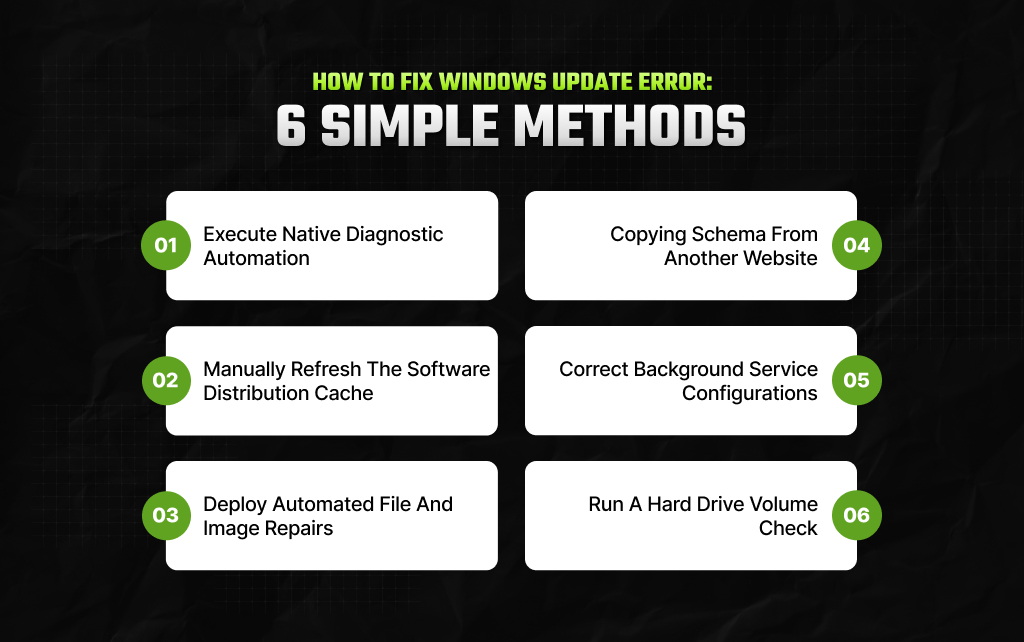
Follow the steps below in order if you are wondering how to fix Windows Update error. They have been organized from the easiest to slightly more advanced solutions.
First, try Windows’ built-in automatic repair tool. The wizard checks your background services, looks for missing data, and balances your registry.
Windows 11:
Start > Settings > System > Troubleshoot > Other troubleshooters. Find Windows Update and click Run.
Windows 10:
Start > Settings > Update & Security > Troubleshoot > Additional troubleshooters. Click on Windows Update and click Run the troubleshooter.
Important: After the tool has finished, never click the Shutdown button. Click the power icon and click Restart.
Windows contains a feature called Fast Startup, which stores parts of your system during a normal shutdown. To fully clear old errors from memory, click Restart.
If your update is stuck downloading at 0% or 100%, then your local cache is likely causing the problem.
By clearing these files, your system will no longer recognize the damaged files and will request a fresh copy from Microsoft.
If your system has lost essential background files due to an unexpected power cut or crash, your updates will fail to install.
Windows has two tools that can automatically resolve this issue without affecting your personal applications: System File Checker & Deployment Image Servicing and Management.
Wait for the bar to reach 100%. If it shows ‘Windows Resource Protection found corrupt files and successfully repaired them,’ restart your PC immediately
If external optimization apps pause your background services or set them to manual, your updates will fail.
If the service status says Stopped, click the Start button underneath. Click Apply, then OK. Reboot your system fully.
Occasionally, small errors or misalignment can occur on your hard drive. This can prevent Windows from committing new files.
If you’re having issues with just one patch, you can skip your system’s update engine entirely. Simply download a standalone self-installer.
Open it like any other program. Follow the on-screen prompts to patch your PC.
When an update fails, Windows generates an eight-character alphanumeric error code.
Moreover, you can use this clear table to map your exact code to its probable cause and immediate fix:
| Specific Error Code | Potential Technical Cause | Targeted Troubleshooting Step |
| 0x80070002 / 0x80070003 | File Not Found. The update installer lost track of its download paths. | Follow Method 2 to clear out the temporary software update folders completely. |
| 0x800f081f | Source Files Missing. The local component store cannot locate base reference files. | Run Method 3 (DISM followed by SFC) to fetch clean system files online. |
| 0x80240034 | The update process got stuck due to a temporary network lag or server disconnect. | Verify your internet connection, turn off external proxy settings, and rerun Method 1. |
| 0x80070422 | Access Denied / Service Stopped. A policy or app is locking down the core engine. | Execute Method 4 to shift your update services back into the Automatic state. |
| 0x80070005 | Permissions Block. Security software is stopping Windows from writing new system data. | Temporarily pause your third-party antivirus shields or run updates as an Administrator. |
| 0xC1900101 | Driver Conflict. An old hardware driver (like graphics or storage) is blocking an upgrade. | Open your Device Manager, find your display or network adapters, and select Update driver. |
Also check: What Is 5xx Server Error? What Does It Mean?
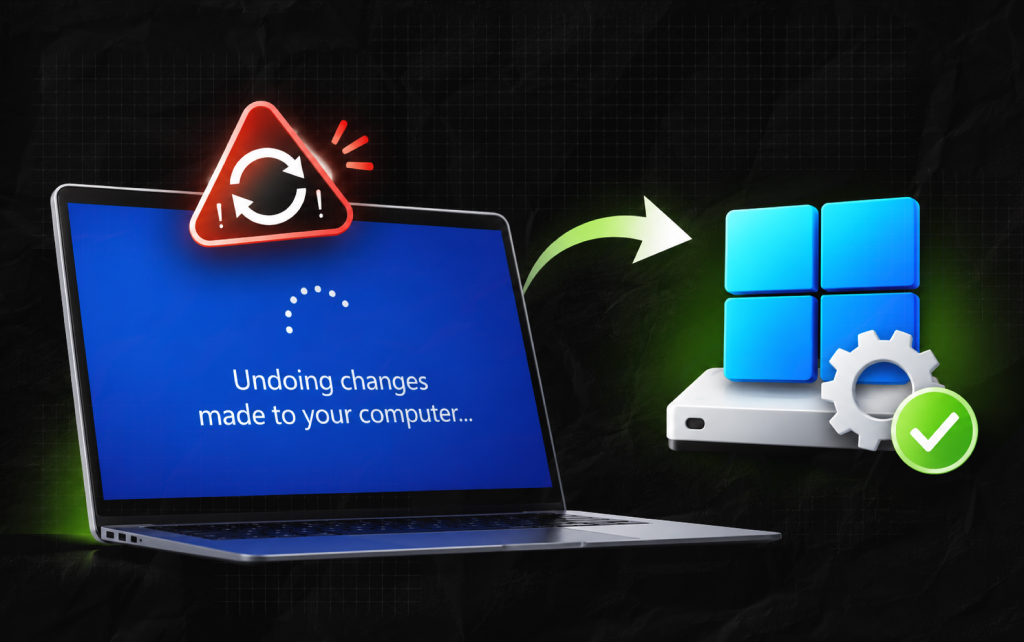
If your computer still fails to fix itself and keeps looping “Undoing changes made to your computer,” you have a deeper problem. To fix this safely, Microsoft provides two options.
Newer versions of Windows 11 have an intelligent cloud-based tool to download and then install a new clean version of your OS. This will fix any underlying problems.
This will allow your device to check with Microsoft’s cloud servers and download a clean version of your OS.
This will clean any hidden corruption whilst leaving your documents, photos, and 3rd-party applications.
If you cannot see this option or are running Windows 10, you can install a fresh version of your OS files by performing an In-Place Upgrade.
Important Step: Continue through the installation, and when you get to the last screen, make sure it shows ‘Keep personal files and apps’ and then click Install.
Moreover, your device will now go through a long reboot process to replace your out-of-date and faulty OS files.
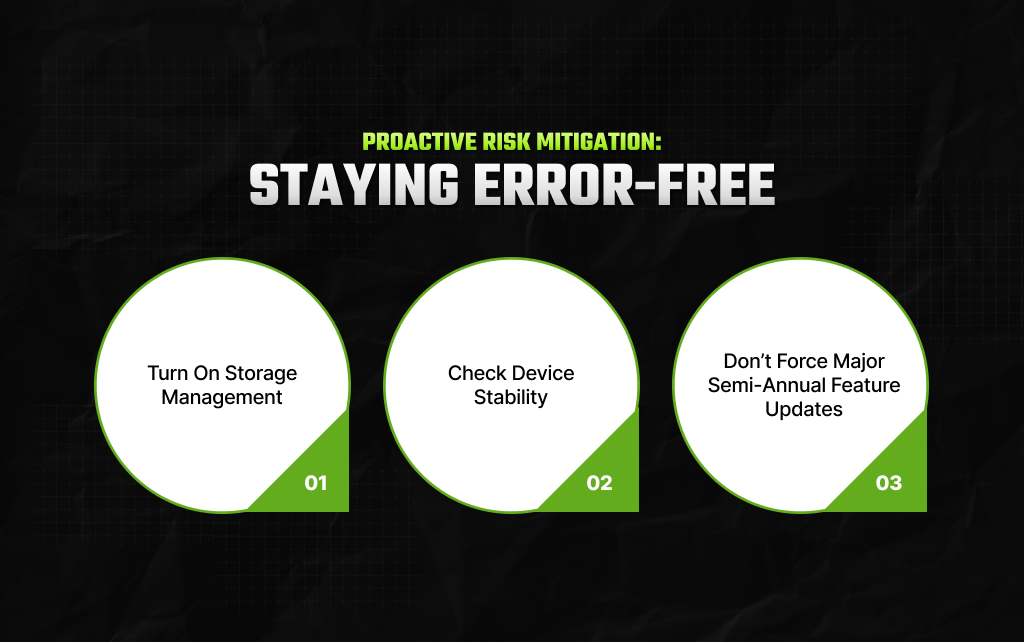
To help prevent this issue in the future, you can do the following.
Go to Settings > System > Storage. Then turn on Storage Sense.
This will automatically manage your storage by clearing unnecessary files, including temporary folders, old installation logs, and duplicates in your Recycle Bin.
Moreover, this will ensure there is always enough space on your device for the monthly security updates.
If your device acts strangely after an update, type ‘view reliability history’ into your Start menu.
This will open the Reliability Monitor. It shows a daily breakdown of what’s been happening in the background on your device.
This includes any crashing applications, hardware issues, and patches.
If your friends are getting an update for a major semi-annual feature but you are not.
Don’t attempt to force this update. Microsoft will automatically block updates if it detects a conflict with your drivers or applications.
This helps keep your PC stable until a fully compatible patch is available for your device.
Piyasa is a search engine marketing strategist who has spent the last six years decoding Google's ever-changing mind. From corporate giants to neighborhood storefronts, she helps businesses cut through the digital noise and actually get noticed online. When she isn’t building SEO strategies or writing the latest search industry breakdowns for Search Engine Magazine, you can usually find her hanging out with friends - and gently reminding them that no, she cannot personally fix the latest algorithm update for them.
View all Posts

Can You Screenshot On Instagram Without Them ...
Nov 04, 2026
Enterprise Search Guide: Modern Knowledge Man...
Nov 03, 2026
The Enterprise Framework: How To Measure AI P...
Nov 03, 2026
How To Create A Group on WhatsApp Without Los...
Nov 03, 2026
The Ultimate AI Showdown: Is GPT 5.3 Codex Or...
Nov 02, 2026