
Structured Data SEO: How Schema Markup Helps Search Engines Understand Your Website
Sep 12, 2026

Google’s Chromebooks brought in a revolutionary change in the market. Making tech lovers go bonkers over an affordable and easy-to-use device.
Unlike its competitors — Windows and MacBook — Chromebook is popular for its beginner-friendly design. Snatching the interest of students and professionals alike.
Now, even though it is designed to simplify the complexities of a computing device, switching from a different operating system to this can be a hard nut to crack.
So, to simplify this digital transformation, I have delved into the diverse operations on Chromebooks. Exploring the processes to guide you through them in a jiffy.
Here, in this blog, I will focus on how to copy and paste on Chromebook devices, highlighting—
Stay tuned!
First things first, Chromebooks and regular laptops are not the same. That is, a Chromebook comes with the Google Chrome OS, whereas regular ones usually have Windows or Mac OS.
Now, as a laptop, it performs exactly like any other computing device. But there is a twist. Unlike normal Windows laptops, Chromebooks use web apps and cloud storage.
That is, it allows users to store their documents and files online without cluttering the device storage. This way, the device runs smoothly, and users can access the files from any other connections.
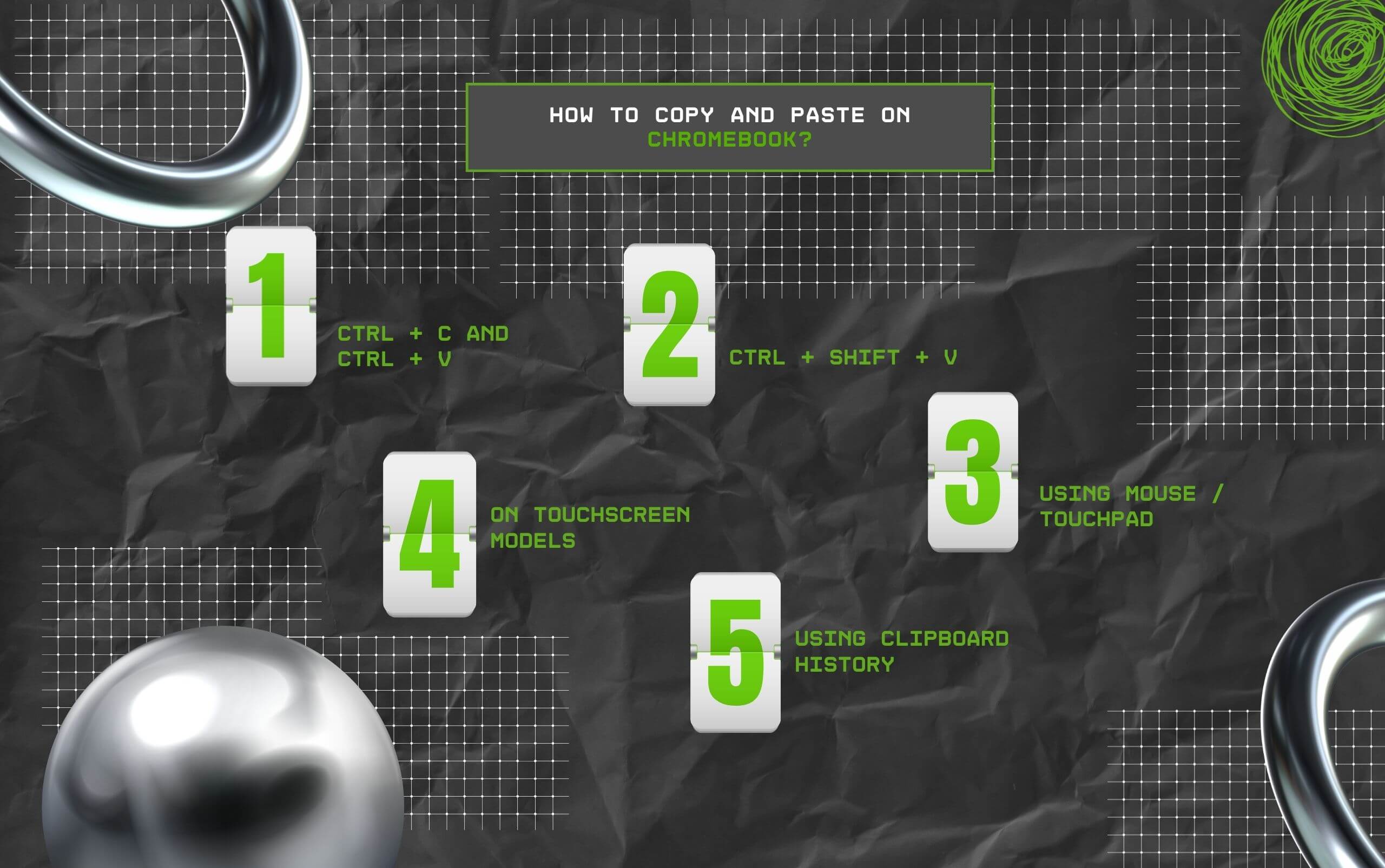
Now, coming to one of the basic functions on a laptop — copy and paste. Since a Chromebook is slightly different from regular laptops, this simple function needs a proper guide.
So, some of the methods to execute this basic function include—
Firstly, users can go for the simple keyboard shortcuts to copy and paste a selected item on Chromebooks. So, the steps are—
Now, sometimes users might need to paste a specific item without formatting it. So, they can follow the steps below—
Apart from the keyboard shortcuts, users can choose the connected mouse or touchpad to copy and paste items on a Chromebook. For that, just follow these steps—
Moreover, a touchscreen model of the Chromebook can make the copy-paste process a lot simpler. Since it has a touchscreen, users can simply use it like a phone.
So, the basic steps include—
In addition to this, Chromebook allows its users to paste content or a file stored in the clipboard.
Like Google’s GBoard, users can access the clipboard to store copied items. Making it easier to paste them at any time. So, here are the simple steps to use the clipboard—
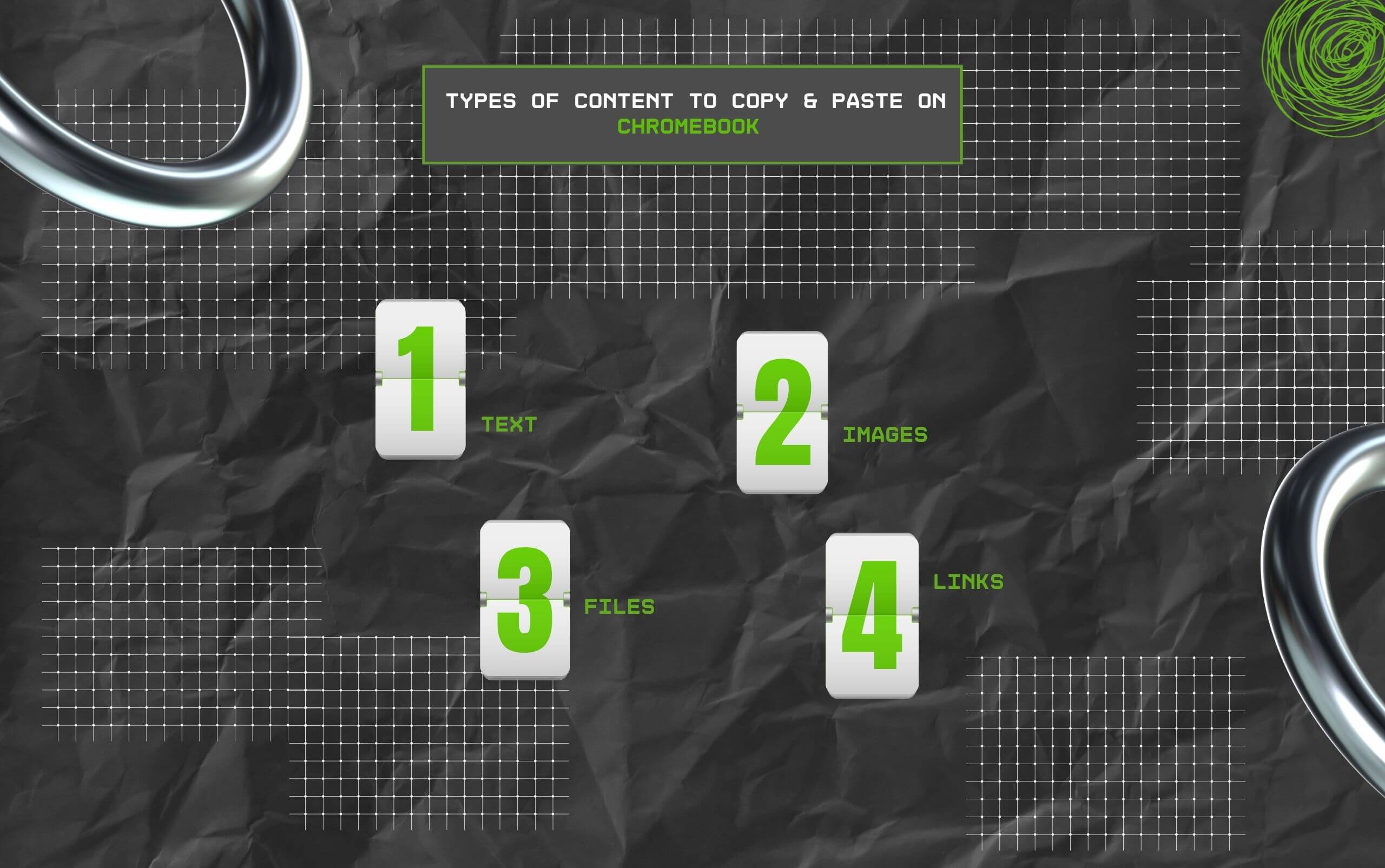
Simply knowing the diverse methods is not enough. So, here are the types of content that users can copy and paste on a Chromebook device—
So, with thai simple guide, it can be easier to execute the foundational function of copy and paste on Chromebook devices. Now, try these methods to get started using this revolutionary device.
Here, I have brought you some common questions around the copying and pasting methods used on Chromebooks.
Generally, you can use the mouse or the touchpad to select the entire content on a Chromebook. But some Keyboard shortcuts can also help in selecting the entire thing faster.
For instance, Ctrl + A can select the entire file. So, you can select all the text and images on the screen using this shortcut.
But if you need to select a particular section from the entire file, you can select the beginning of the section and then press and hold the Shift key.
Then, scroll to the end of the section and click once to select the entire section.
Similar to copying text or other files, copying an image on a Chromebook is quite simple.
That is, you need to find the image and right-click on the mouse or tap on the touchpad using two fingers to open the pop-up menu.
From the menu, select the copy option to copy the specific image. Then, go to the desired location to paste the image.
Alternatively, you can select the image using a single tap on the touchpad or a double click on the mouse and use the keyboard shortcuts Ctrl + C to copy.
Then, using Ctrl + V, you can paste the image in the desired location.
Yes, absolutely. After you have copied the items on the Chromebook, you can hover back to different apps to paste the items.
That is, you can use the Ctrl + V shortcut or right-click on the mouse to open the pop-up menu and select the paste option. This way, you can paste the items anywhere.
Generally, you can use the keyboard shortcut Ctrl + Shift + V to paste the copied content without formatting on a Chromebook.
Alternatively, you can use the right-click on the mouse or the two-finger tap on the touchpad to open the pop-up menu. And, select the ‘Paste without Formatting’ option.
Read Also:
Chandrima is a seasoned digital marketing professional who works with multiple brands and agencies to create compelling web content for boosting digital presence. With 3 years of experience in SEO, content marketing, and ROI-driven content, she brings effective strategies to life. Outside blogging, you can find her scrolling Instagram, obsessing over Google's algorithm changes, and keeping up with current content trends.
View all Posts

Structured Data SEO: How Schema Markup Helps ...
Sep 12, 2026
TikTok Downloader For Content Marketing Resea...
Sep 12, 2026
AI Content Optimization: How To Make Your Con...
Sep 11, 2026
AI Citations: How To Get Your Content Referen...
Sep 10, 2026
Top Enterprise AI Cloud Platforms for RAG, AI...
Sep 08, 2026