The Traffic-to-Revenue Gap: Why More Website Visitors Don’t Always Create More Customers
Sep 17, 2026
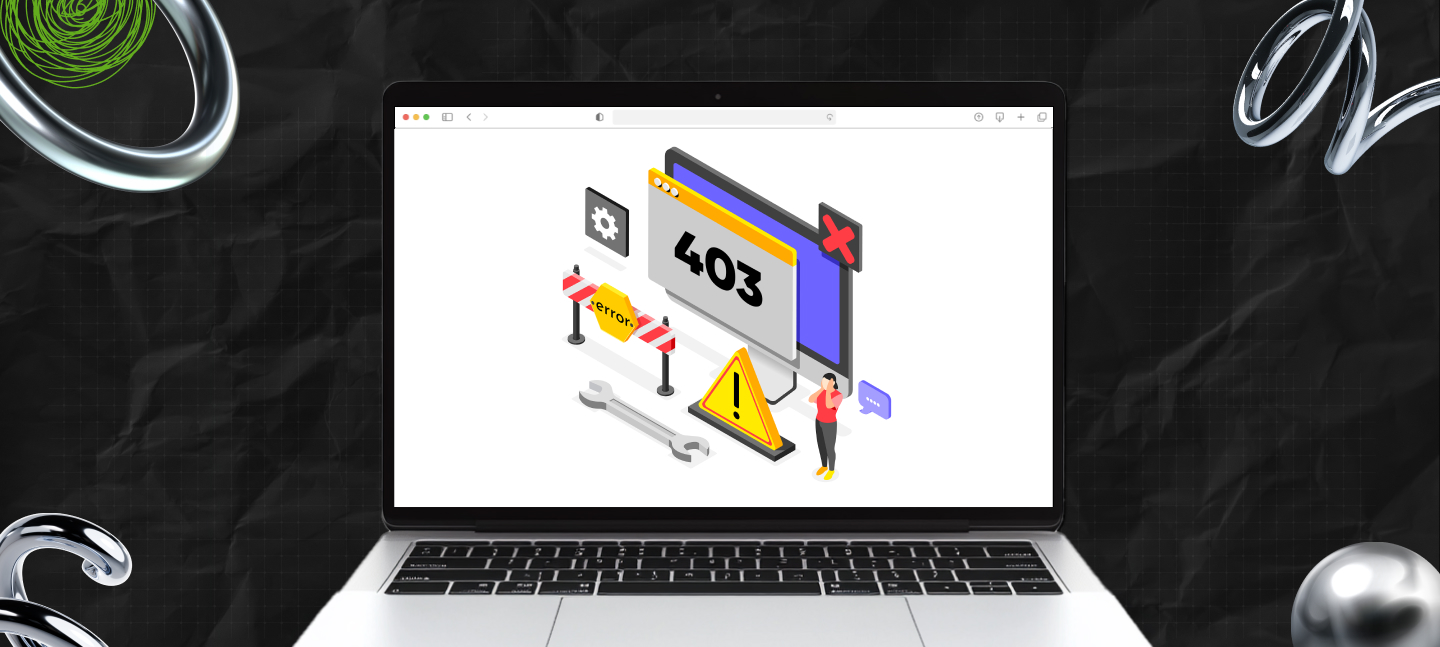

What does 403 forbidden mean?
As a digital marketing professional with a creative background, technical terminology is sometimes lost on me.
At least that was the case for the first few years, but with the right time in the industry, I had to figure it out on my own.
As a result, I keep covering different queries in my blog from time to time. The intention? To ensure that you can acquire and access knowledge much more easily than I did.
On that note, today, let’s talk about 403- more importantly, about what it means and how you can fix it.
FYI, a 403 error happens when a server is able to understand a request but doesn’t allow the user to access it.
For most websites, this server error can stop search engines and legit services from visiting vital web pages.
This, in turn, leads to a sort of broken functionality, loss of organic traffic, and other SEO problems.
Unlike other server downtime errors, this one generally points to security settings, permission rules, or misconfigured/restrictive access controls.
As a result, understanding what this error is about and how to fix it without compromising safety can help you determine whether your site is experiencing authentication issues, firewall issues, server rules, or file permissions.
Also, for a better understanding of all the SEO terms you should know about, I have created an SEO glossary to help SEO newbies trying to prepare for interviews.
Stay tuned.
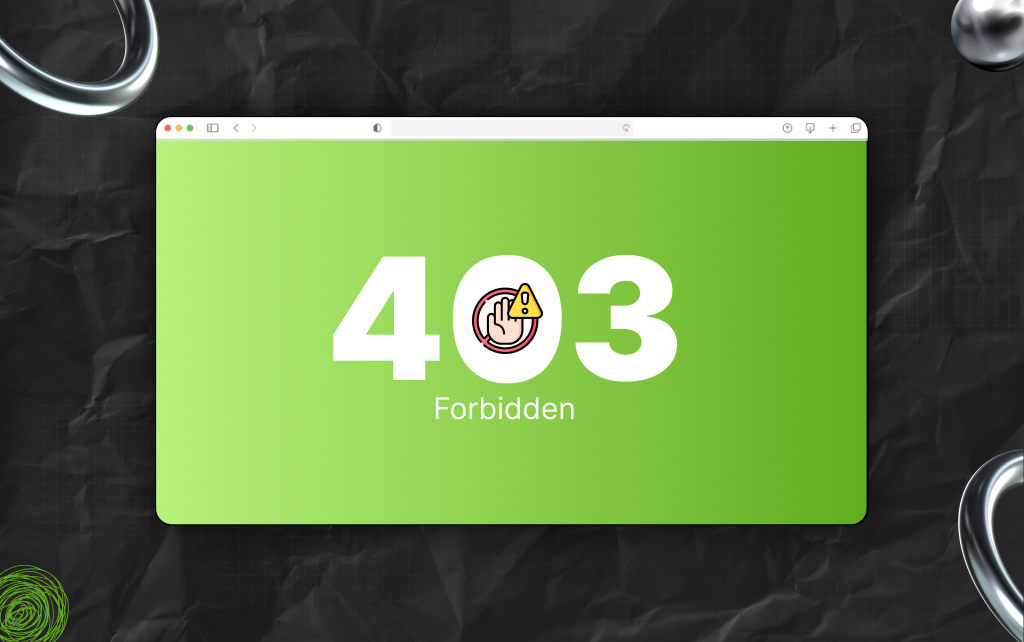
When a user clicks through, your server will ideally respond to the knock. Now, in most cases, the server understands what the request means and implements it.
However, in the case of a 403 forbidden error, the server understands the user’s request but fails to show the web page.
In the HTTP context, the server gets any valid request and decides not authorize the accurate response.
So, while the webpage exists and the web server is fine, access to the page is blocked by the server.
As a result, the users might see a simple 403 forbidden message- the screen can say ‘access denied’ or ‘forbidden.’
Now, this is applicable to a directory, a file, or just an action for viewing any protected route. Also, users who are logged in can check whether their role has the required permissions.
Moreover, it is only logical to place this error with other standard HTTP errors.
For instance, a 401 error means that the visitor requires credentials, and a 404 error means that the resource you are looking for doesn’t exist.
Similarly, a 500 error highlights the malfunction of a server.
Also, in the context of sales, this error can significantly hamper potential customers from visiting your website.
This is because when your potential customers cannot access your website, they will just move to alternative websites if you are selling something essential.
As a result, resolving this error should start with the particular rule that asked the web server to refuse. Moreover, those rules usually have patterns.
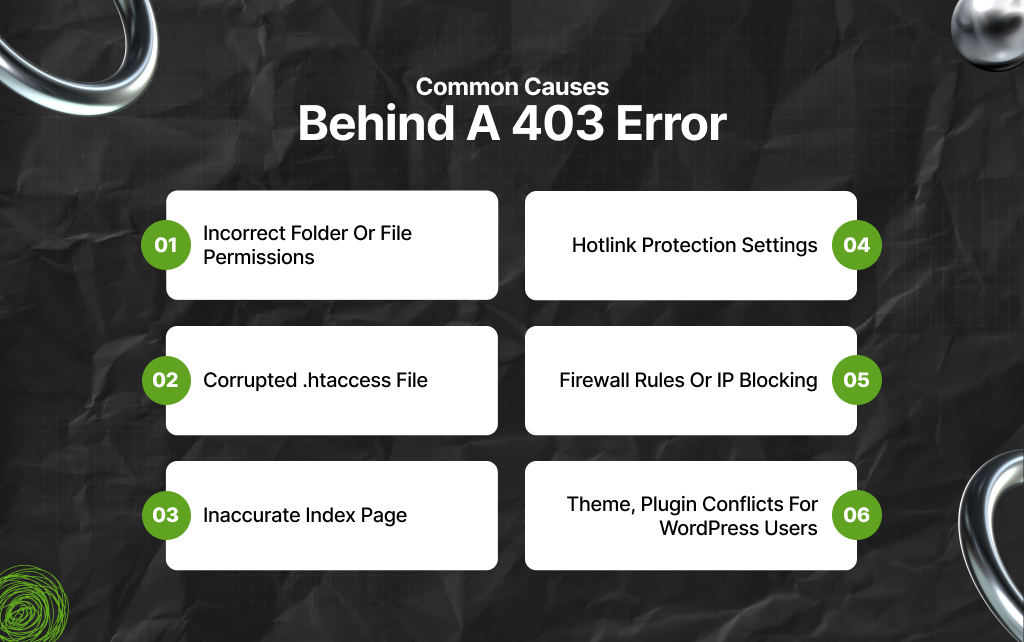
Also, most kinds of 403 errors generally stem from:
Additionally, I’ve covered some other HTTP error codes in detail in my other blogs, including:
Even a physical store, no matter how small or big, can easily lose customers if it cannot refine its basic policies.
However, for websites, that is absolutely imperative. Most 403 errors usually trace back to predictable problems – and you need to tackle them first!
Permissions usually decide who can access what. As a result, if a folder uses 700 and not 755, then public access to the same folder fails.
Similarly, if the files have a 600 error code, then the server will fail to read them. The result? A 403 error message even if the web page exists.
After restoration or migrations, WordPress websites often end up with incorrect permissions.
One common problem in this context is that the uploads or the wp-content folder has been set to 644. Then, images throw the forbidden error, even if everything appears all right.
So, to fix this issue, you need to set baselines that are safe. For instance, set your files to 644 and folders to 755. Also, ensure that you never resort to using 777.
Additionally, carefully apply recursively and then recheck different areas like /wp-content, your uploads, and /public_html folders.
Remember, when your permissions appear correct, the culprit typically hides inside some small file with a lot of power.
.htaccess controls access, rewrites, and redirects. So, one random stray line can easily end up blocking an entire website or even a directory.
Now, a duplicate rule that denies instead of or from a subfolder can end up triggering a forbidden error instantly.
Moreover, leftover rules from any old plug-in can lead to conflict with the new settings. On top of that, forced HTTPS blocks and rewrite loops are all traps – and that too classic ones.
In such cases, clean tests always help. As a result, you can rename .htaccess temporarily as .htaccess.bak.
Now, load the website. If it ends up opening, you can regenerate basic rules from your control panel or app.
Having said that, if your rules are fine, then you can check whether the home page’s welcome file is any good or not.
Every website needs a landing file by default. Now, several servers search for index.html or index.php.
Now, if neither actually exists, then some servers might reply with a 403 error rather than listing files.
In such cases, case sensitivity is responsible for causing surprise failures. As a result, on Linux, index.php isn’t index.php really.
Also, any custom DirectoryIndex that points to an inaccurate filename can block visitors. This definitely differs from your usual 400 error code, which in turn signals a poor request.
Here, however, the request is okay- plus, the server ends up refusing because it doesn’t have any entry point with approval.
On top of that, when such an entry is accurate, protection features end up rejecting valid visitors.
Hotlink protection saves bandwidth by stopping other sites from loading your images. But bad referrer rules can end up blocking your visitors.
Moreover, product images disappear, and thumbnails show a 403 error.
This often happens when you miss your CDN subdomain or the www version in the allow list. Social sites like Pinterest or Facebook may get blocked, too, which hurts discovery.
As a result, you can add your main domain, the www version, your CDN subdomain, and key search referrers to the allow list. Then test image-heavy pages and your checkout.
If images load fine again, move on to stronger security checks.
Security tools play it safe when traffic looks risky.
Country blocks, VPN ranges, or strict bot filters can reject real customers. Also, payment gateways, Googlebot, or office IPs may get a Forbidden response.
Check recent deny rules and WAF logs. Make sure trusted services are not caught in a wide net.
Now, compare this with a 401 error, which means missing credentials. Here, the request is valid, but access is still denied.
If server rules look fine, the application may still block users.
Apps control access, too.
Now, security plugins can lock out editors after repeated 2FA prompts. Moreover, caching or membership plugins may block key pages, such as the cart or account.
Problems often start after updates or when rules clash. Use a staging site and disable plugins in batches. So, it is best to start with security, caching, redirection, and membership tools.
If you must fix a 403 error on a live store, plan a short maintenance window. Test a small set of plugins first. Also, check issues like upload limits. A 413 error points to request size, not access.
Now that you know the causes, turn them into a simple checklist you can use with confidence.
Before you try random fixes, follow a simple path. Why? Because it helps you find the cause faster.
This order saves time and avoids changes that create new problems.
A 403 error feels final, but it often isn’t. This is because small issues on your side can cause it.
Having suggested these quick fixes, if nothing works, contact the site owner. The problem likely sits on the server.
Most visitor issues come from cache or browser settings – you can fix them in minutes.
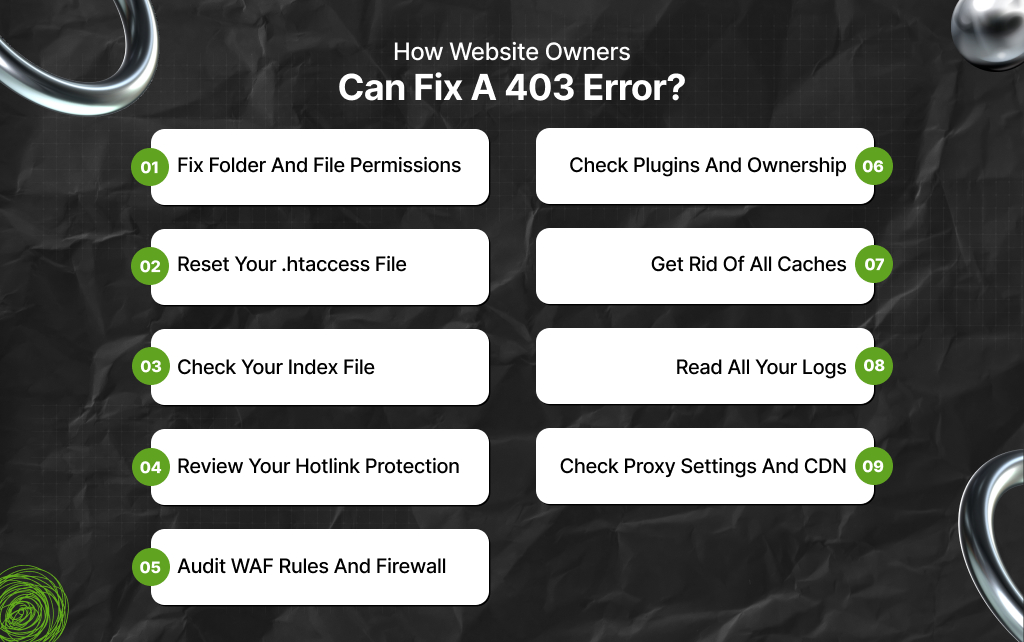
If your site shows a 403 error, you need a method. So, work step by step and test after each fix.
All permissions control access. So, if they are very strict, then the server blocks itself. Also, set folders to 755 and set files to 644, while avoiding 777, as it creates security risks.
A common case appears after migration. That way, you can upload folders, but they may break and stop loading images.
The .htaccess file can block access with a single bad rule. Also, rename it to .htaccess.bak and reload your website. Now, if the error disappears, generate a fresh file.
Old plugin rules often leave behind deny directives.
Servers search for some default files like index.html or index.php. So, if it is misnamed or missing, visitors see a 403 error instead of the homepage.
Also, on Linux, case matters. Index.php will not work if index.php is expected.
Interestingly, hotlink rules can block your own images if set incorrectly. As a result, allow your main domain, your CDN, and the www version. Also, add some trusted referrers.
Missing one entry can break all product images.
Security layers can block real users if they are too strict. So, it is best to remove country or accidental IP blocks.
Also, allow payment gateways and crawlers. A 401 error means missing credentials. However, 403 errors mean access is denied in spite of valid requests.
File ownership can break after migration. As a result, it is best to fix it so the server can read files.
Also, plugins can clash, while security, membership, or caching tools may block access. A 413 error relates to file size, not permissions – so never mix the two.
Fixes may not show if caches store old errors. So, clear your app cache, server cache, and CDN cache.
Your logs show the truth – more importantly, access logs reveal which of your URLs have failed. Moreover, error logs show permission issues, and WAF logs show blocked users.
A misconfigured CDN can give back 403 errors at the very edge. Confirm it points to the right origin.
Also, review rules and headers. Additionally, if needed, compare with other errors like 500, 502, or connection failures. Make changes one at a time and test in incognito after each step.
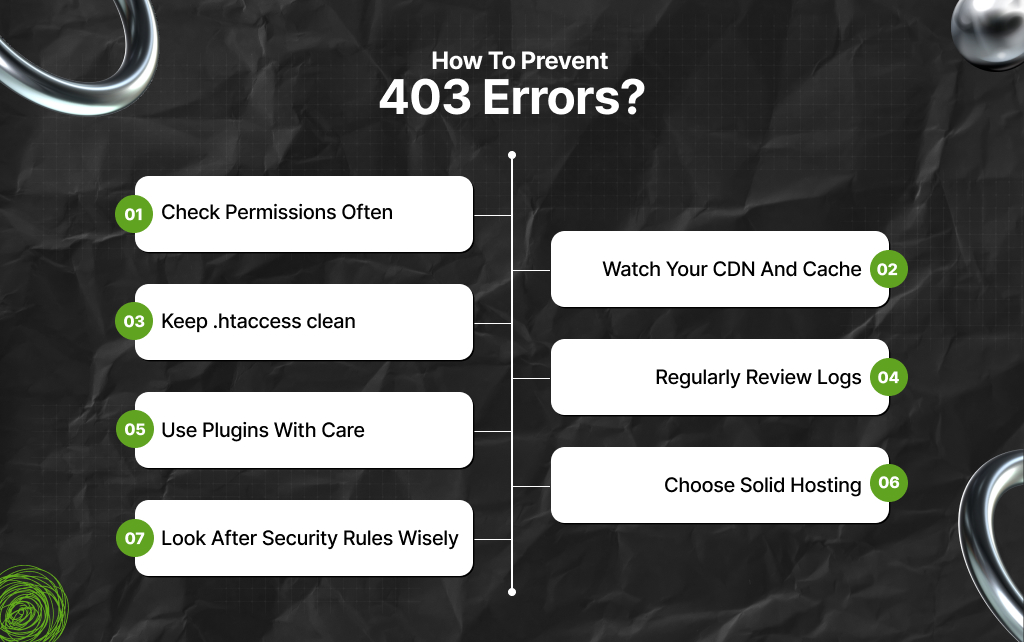
Fixing a 403 once is great. But preventing it saves time and revenue. So, here’s how you can prevent these errors from taking place.
A 403 error often means access rules work, but not as intended.
As a result, it is best to maintain ownership and correct permissions at all times. Also, check them after every change.
Moreover, edit .htaccess with care because small mistakes can block your entire site.
Additionally, rely on logs, not guesses, since they can show why access fails. Treat access control like ongoing work.
So, when you stay consistent, 403 errors become rare.
Barsha is a seasoned digital marketing writer with a focus on SEO, content marketing, and conversion-driven copy. With 8+ years of experience in crafting high-performing content for startups, agencies, and established brands, Barsha brings strategic insight and storytelling together to drive online growth. When not writing, Barsha spends time obsessing over conspiracy theories, the latest Google algorithm changes, and content trends.
View all Posts

The Traffic-to-Revenue Gap: Why More Website ...
Sep 17, 2026
The Volatility Trap: What Crypto Position Siz...
Sep 17, 2026
Schema Markup: How To Use It Without Turning ...
Sep 17, 2026
Turn A Search Question Into A Watchable Expla...
Sep 16, 2026
Agency Guide To YouTube Growth: Wholesale Pri...
Sep 15, 2026