All-In-One Local SEO Software For Agencies Managing Multiple Clients
Nov 06, 2026
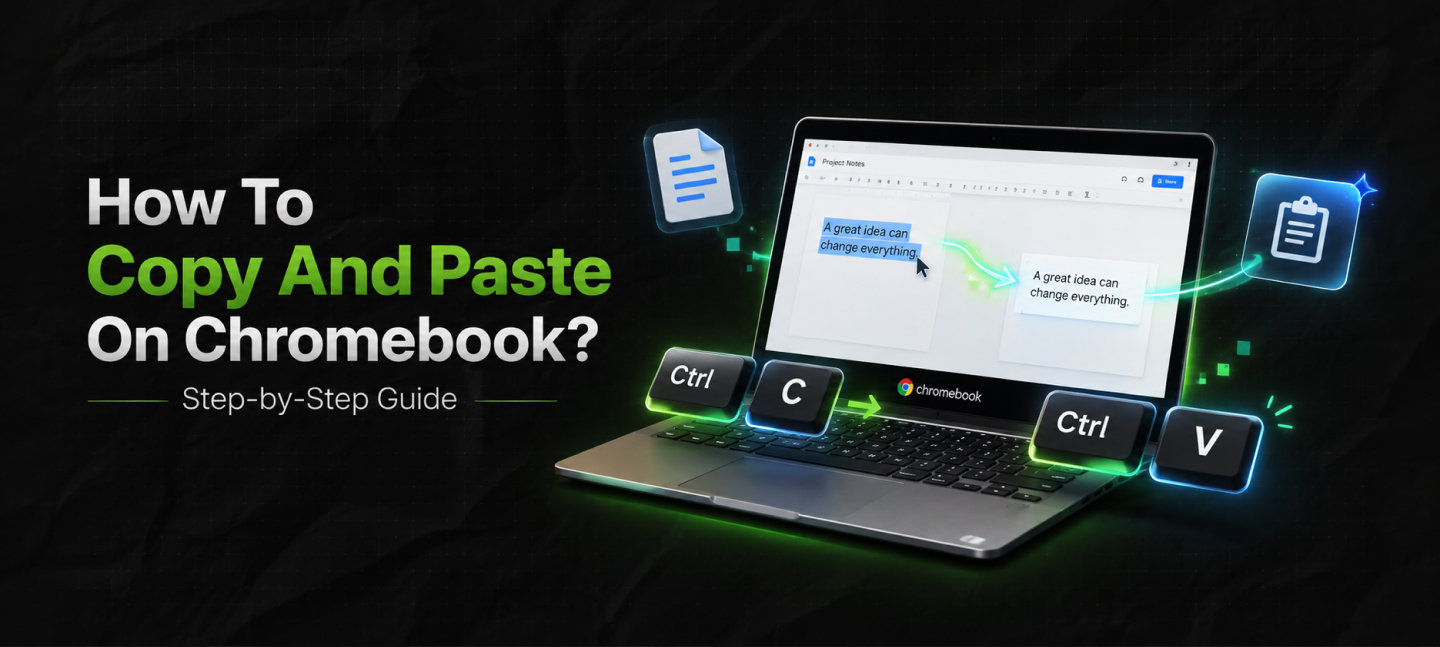

Google’s ChromeOS ecosystem has radically changed the laptop market, providing users with affordable, fast, and secure devices.
However, if you are transitioning from Windows or macOS, adapting to a new interface can feel unfamiliar.
To help you master the basics, this guide shows you exactly how to copy and paste on Chromebooks using several efficient methods.
So, to simplify this digital transformation, I have delved into the diverse operations on Chromebooks. Exploring the processes to guide you through them in a jiffy.
Here, in this blog, I will focus on how to copy and paste on Chromebook devices, highlighting—
Stay tuned!
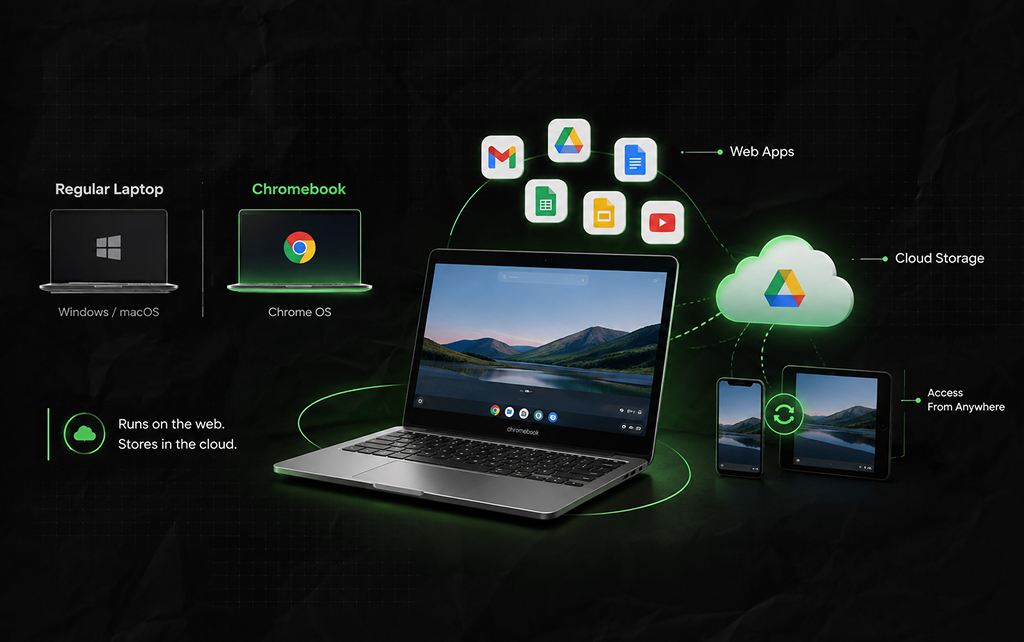
First things first, Chromebooks and regular laptops are not the same. That is, a Chromebook comes with the Google Chrome OS, whereas regular ones usually have Windows or Mac OS.
Now, as a laptop, it performs exactly like any other computing device. But there is a twist. Unlike normal Windows laptops, Chromebooks use web apps and cloud storage.
That is, it allows users to store their documents and files online without cluttering the device storage. This way, the device runs smoothly, and users can access the files from any other connections.
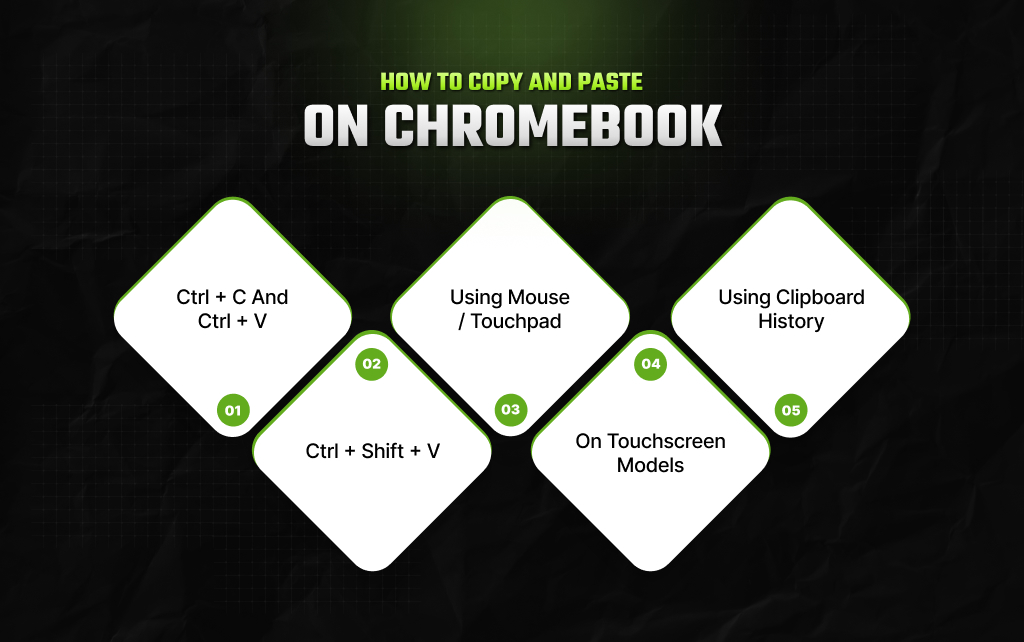
Now, coming to one of the basic functions on a laptop — copy and paste. Since a Chromebook is slightly different from regular laptops, this simple function needs a proper guide.
So, some of the methods to execute this basic function include—
| Action Required | Chromebook Shortcut / Method |
|---|---|
| Standard Copy | Ctrl + C |
| Standard Paste | Ctrl + V |
| Paste Without Formatting | Ctrl + Shift + V |
| Open Clipboard History | Search Key (or Launcher) + V |
| Contextual Menu | Two-finger tap on the Touchpad |
Firstly, users can go for the simple keyboard shortcuts to copy and paste a selected item on Chromebooks. So, the steps are—
Now, sometimes users might need to paste a specific item without formatting it. So, they can follow the steps below—
Apart from the keyboard shortcuts, users can choose the connected mouse or touchpad to copy and paste items on a Chromebook. For that, just follow these steps—
Moreover, a touchscreen model of the Chromebook can make the copy-paste process a lot simpler. Since it has a touchscreen, users can simply use it like a phone.
So, the basic steps include—
In addition to this, Chromebook allows its users to paste content or a file stored in the clipboard.
Like Google’s GBoard, users can access the clipboard to store copied items. Making it easier to paste them at any time. So, here are the simple steps to use the clipboard—
Note: The Chromebook clipboard automatically retains your last 5 copied items (including text, links, and screenshots), allowing you to select and paste older items seamlessly.
Simply knowing the diverse methods is not enough. So, here are the types of content that users can copy and paste on a Chromebook device—
Mastering how to copy and paste on Chromebook models drastically speeds up your daily workflow.
Whether you rely on classic keyboard hotkeys, contextual menus, or the multi-item clipboard history tool, these shortcuts ensure you get the absolute most out of your ChromeOS device.
Read Also:
Barsha is a seasoned digital marketing writer with a focus on SEO, content marketing, and conversion-driven copy. With 8+ years of experience in crafting high-performing content for startups, agencies, and established brands, Barsha brings strategic insight and storytelling together to drive online growth. When not writing, Barsha spends time obsessing over conspiracy theories, the latest Google algorithm changes, and content trends.
View all Posts

All-In-One Local SEO Software For Agencies Ma...
Nov 06, 2026
Can You Screenshot On Instagram Without Them ...
Nov 04, 2026
How To Fix Windows Update Error Codes On Wind...
Nov 04, 2026
Enterprise Search Guide: Modern Knowledge Man...
Nov 03, 2026
The Enterprise Framework: How To Measure AI P...
Nov 03, 2026