The Ultimate Guide To Competitor Backlink Analysis: An Actionable SEO Blueprint To Steal Your Rivals’ Traffic
Oct 23, 2026

As social media emerged, communication became effortless. Now, literally everyone around the globe can stay connected with each other through digital platforms.
But sometimes staying connected can become difficult with restrictions and online blocking. That is, if someone is restricted by another user on social media, they are prevented from contacting the user.
So, they need to be unrestricted on the platform to be able to communicate like before.
Especially in Messenger, restricting someone means that they can view your posts and stories.
But they are stopped from responding to your texts, participating in the group polls, or even the basic interaction permissions like liking or commenting on the posts.
So, to revive their connection, you need to unrestrict them on the platform. But unrestricting someone on any platform of Meta is not that simple.
So, to help my buddies, I have brought a perfect step-by-step guide on how to unrestrict in Messenger. In this blog, I am going to delve into the diverse steps and focus on—
Stay tuned!
Before jumping into the step-by-step tutorial of unrestricting someone on Messenger, let’s look at what restricting in Messenger actually means.
Now, Messenger offers countless features to Meta users to have smooth and effortless conversations with other users on the platform.
Among these features, Restrict is an option that allows the user to limit the permissions for the other person. Making it easier for users to manage their connections with other users.
Moreover, the Restrict option does not remove all the connection permissions abruptly. Rather, it limits the permissions to benefit the user. So, they can engage in a safer and more controlled space.
In addition to this, the restricting option makes the conversation thread move to the Message Requests section. So, it won’t be visible under the General message inbox.
This way, the user can review the details of the messages from the restricted person when they find it convenient.
Furthermore, the restricted person cannot like or comment on the user’s posts. So, the users can prevent unwanted interactions with their posts and videos on Facebook.
Now, sometimes users might want to restore the connection with the restricted person over time. And, Messenger completely understands this. So, it allows users to change the restriction at any time they want.
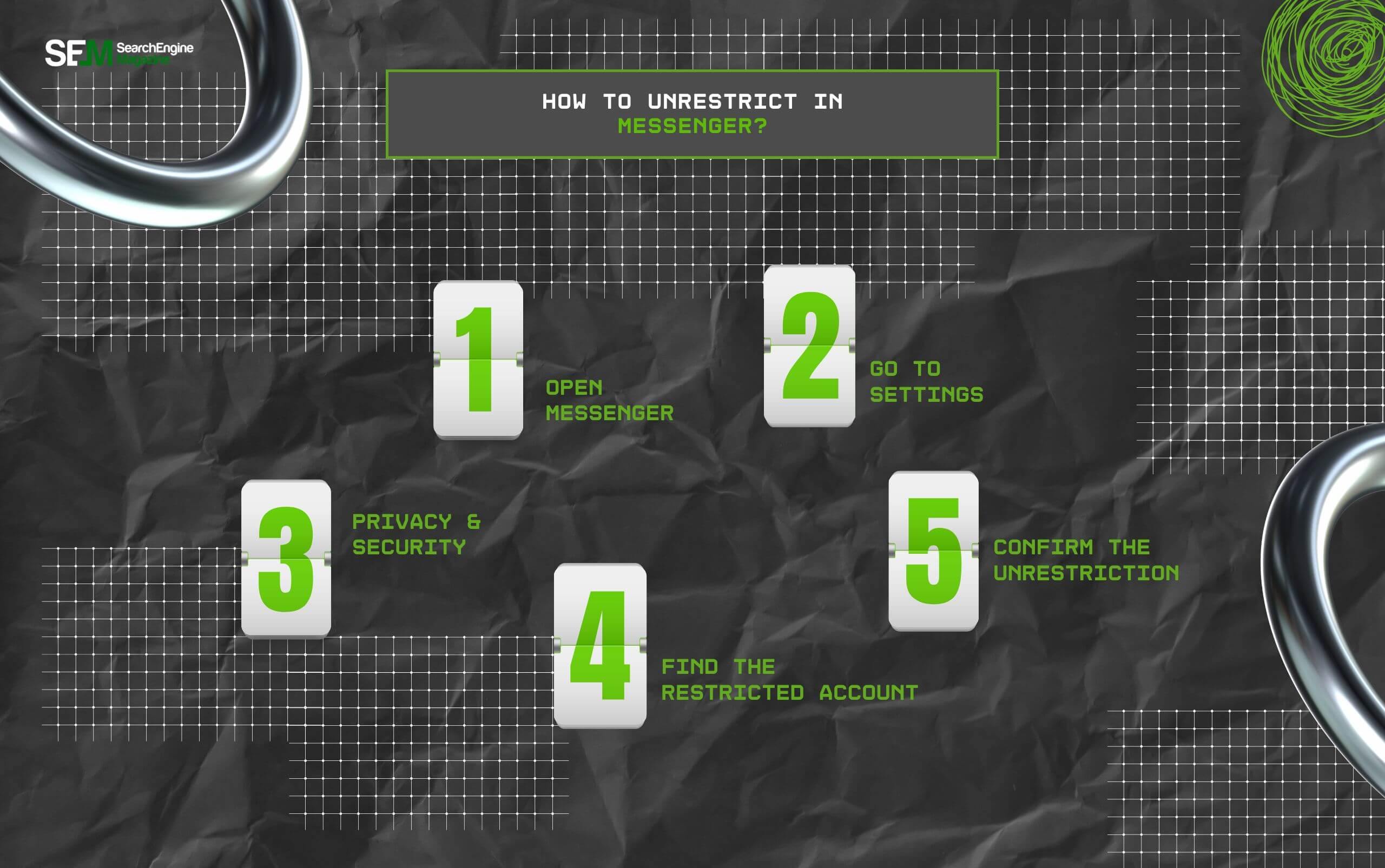
But without knowing the right steps, it might be difficult to change the restrictions in Messenger. So, here is a simple breakdown of the steps—
Firstly, open the Messenger app and log in to your Facebook account. This way, you can access the messages section of the platform on the Messenger app.
Then, click on the hamburger sign and find the Settings option. This will help you to manage and change the messaging settings for the app.
Once the Settings open, scroll through the drop-down menu and select the Privacy and Security option. So, you can change the privacy setting for your connections on the platform.
Moreover, from the Privacy and Security menu, find the option of Restricted Account. Select it and scroll down the list to find the contact that you want to Unrestrict.
Finally, once you locate the contact, hold the contact name, and a pop-up menu will appear. So, select the Unrestrict option, and confirm the process.
This way, the restriction on the contact will be immediately removed. Moreover, the conversation thread will reappear on the General message inbox page along with other chat threads.
Even though apparently restricting and blocking seem similar, they share many dissimilarities. That is, one completely removes someone from the contact list, and the other limits their connection with the user.
For instance, when you block someone on Messenger, they are automatically blocked on all the Meta platforms for your account. That is, they won’t find your profile or be able to interact with your posts on Facebook or Messenger.
Moreover, blocking someone means you can also delete the chat thread permanently from the Messenger inbox.
But, on the other hand, restricting someone means limiting their interactions with your content and social media presence. So, it is like drawing a boundary line to stop them from overstepping the limit.
In addition to this, restricting someone on Messenger can move the messages back to the Message Requests section. So, giving the user to check them when they feel convenient.
In a way, restricting allows users to stop someone from connecting with them without completely severing the ties with them.
If you think that you cannot retrieve the restricted conversation threads, you are absolutely wrong. Retrieving them is actually quite easy.
For instance, when you unrestrict the person from the Settings, the restricted chat thread immediately comes back to the General message inbox.
But if that’s not the case with your situation, you can follow these steps below—
Now, with this guide, you can easily unrestrict someone in Messenger and tighten the friendship over time. So, what’s the wait for? Unrestrict them and start conversing today!
Here are some of the common questions around the restrictions and restrictions in Messenger for Meta users.
Yes, absolutely. You can recover eth restricted conversions in Messenger by simply following the steps below. That is, you need to go to the Settings of your Messenger and find Privacy & Safety. Then, from the drop-down menu, choose the Restricted Accounts. After that, from the list of restricted accounts, find the one you want to unrestrict and select the Unrestrict option.
If you are specifically looking to remove someone from eth restricted list of contacts in Messenger, then you need to scroll down the Messenger home page and find the conversation thread of that contact. Then, click on it and scroll down the chat. There you will find the Unrestrict and Cancel option. So, choose the Unrestrict option, and they will be automatically removed from the restricted list of contacts.
Even though both restricting and blocking prevent the other person from connecting with you openly, based on your needs, you can choose to either restrict or block them. For instance, if you want to temporarily stop them from contacting you. But you want them to be able to see your post, videos, and stories. Then, restricting the account is the safest way. But if you want to permanently remove the person from your friend list, then blocking them will solve the issue promptly.
Read Also:
Chandrima is a seasoned digital marketing professional who works with multiple brands and agencies to create compelling web content for boosting digital presence. With 3 years of experience in SEO, content marketing, and ROI-driven content, she brings effective strategies to life. Outside blogging, you can find her scrolling Instagram, obsessing over Google's algorithm changes, and keeping up with current content trends.
View all Posts

The Ultimate Guide To Competitor Backlink Ana...
Oct 23, 2026
How To Land High-Authority Editorial Backlink...
Oct 23, 2026
Why Your Website Traffic Dropped Suddenly And...
Oct 23, 2026
How Do The Physical Google Review Tools Redef...
Oct 23, 2026
How To Get Your Brand Cited In AI Search Resu...
Oct 22, 2026