SEO Dashboard: What To Track, What To Ignore, And How To Make It Useful
Sep 25, 2026
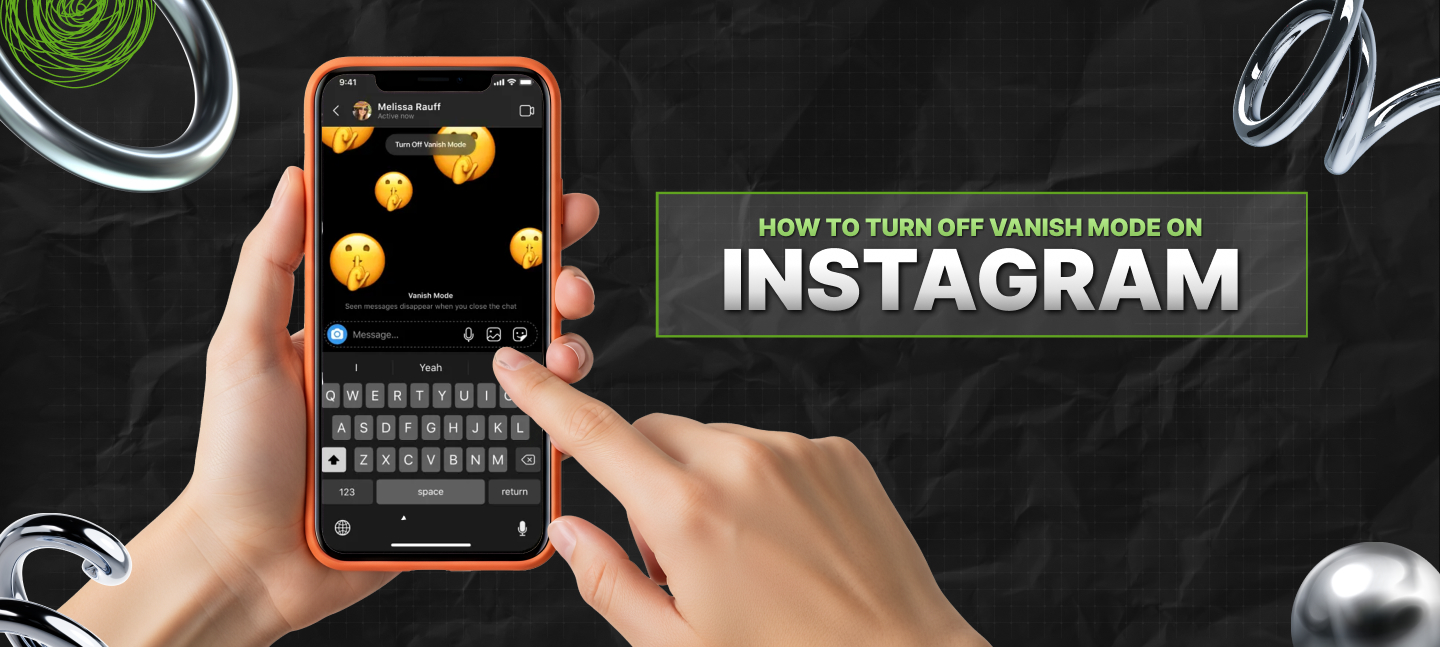

Ever opened a chat on Instagram, only to find the chat window has turned black and all previous messages have disappeared?
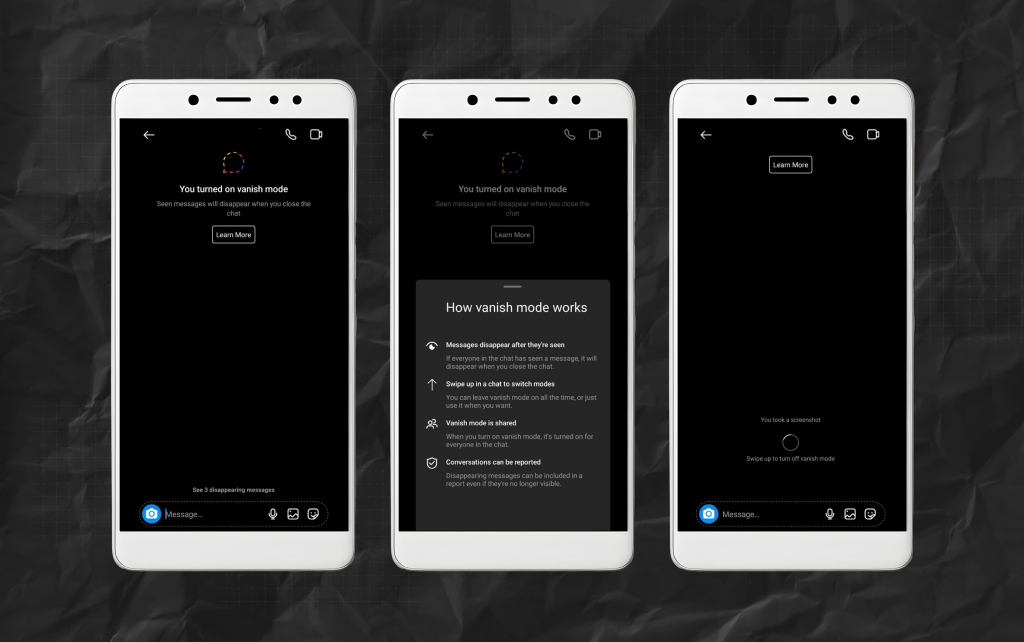
FYI, that’s Instagram’s Vanish Mode in action – a feature tailored for private and temporary conversations. So, the messages will disappear once the recipient sees them.
Now, this might sound like an excellent step towards privacy. But the truth is, it can be somewhat frustrating and confusing for anyone who accidentally switches it on.
And isn’t that the problem? You don’t know how to turn off Vanish Mode on Instagram? TBH, it’s easy to switch this mode on – and even easier to switch it off.
With my help, you can learn how to switch off Instagram’s Vanish Mode. It is easy, simple, and hardly takes any time.
Stay tuned!
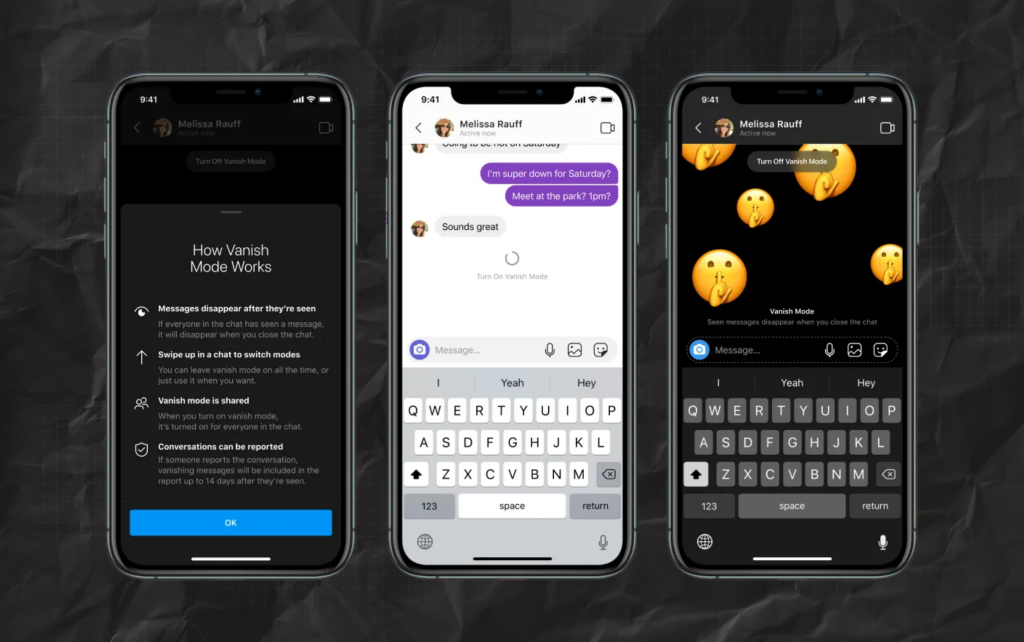
Introduced in 2020, the Vanish Mode of Instagram is similar to what made Snapchat famous. Yes, I’m talking about Snapchat’s ever-popular self-erasing feature.
Instagram launched the vanish mode to protect the security and privacy of users.
So, the media or message shared through the Vanish mode disappears automatically from Instagram, leaving no trace.
Moreover, you might not want your DM history on Instagram to save every chat or conversation you have with people on the platform.
When vanish mode gets enabled, you can send disappearing media, messages, and even audio to other users.
Like Snapchat, whatever message you send in your chats will simply disappear once the user on the receiving end sees the same, and you leave the chat.
Basically, this means there will be zero evidence that the conversation ever happened – interesting, isn’t it?
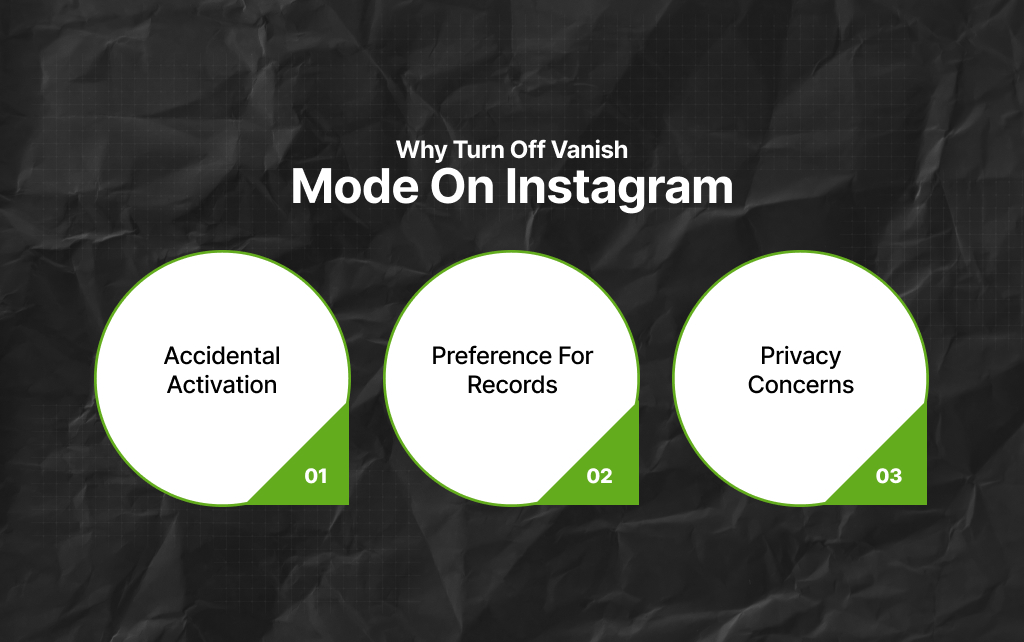
You might want to turn off Instagram’s Vanish Mode for different reasons. Having said that, I’ve shared the three most common reasons behind turning off Vanish Mode on Instagram.
I did tell you this is the easiest guide on the internet – and I’m a woman on my word. So, I’m not going to bore you with unnecessary fluff and details.
On that note, follow the steps mentioned below to turn off Instagram’s Vanish Mod:
Once you have turned off Instagram’s Vanish Mode successfully, you will see that the shaded lines have disappeared, while your chats have gone back to their normal state.
Also, a text highlighting that this mode has been turned off will also appear inside the chat.
Now you know how to turn off vanish mode on Instagram, let’s look at a few tips and essential considerations that you need to remember – it is easy, but don’t screw it up.

In this section, let’s check out some of the things that you must remember while using the Instagram Vanish mode.
The Vanish mode on Instagram is disabled in the platform’s default setting – you have to manually switch the mode on in order to start using it.
On that note, follow the steps below to find out how to turn on Vanish Mode on Instagram.
Once you have switched the Vanish mode on for any chat, you can start sending messages like you usually do.
However, the messages that have already been seen by the recipients will disappear automatically once you end the chat.
Also, Instagram notifies the recipients when you enable the Vanish mode, and just like your chat window, their chat windows will also turn black when they open your chat.
Either you or the recipient can end the Vanish mode at any given time.
Read Also:
Barsha is a seasoned digital marketing writer with a focus on SEO, content marketing, and conversion-driven copy. With 8+ years of experience in crafting high-performing content for startups, agencies, and established brands, Barsha brings strategic insight and storytelling together to drive online growth. When not writing, Barsha spends time obsessing over conspiracy theories, the latest Google algorithm changes, and content trends.
View all Posts

SEO Dashboard: What To Track, What To Ignore,...
Sep 25, 2026
Analytics SEO: How To Turn Search Data Into B...
Sep 25, 2026
AI Search Tools: What They Actually Measure A...
Sep 25, 2026
FAQ Schema: When It Still Makes Sense And Whe...
Sep 25, 2026
The Keyword With 10 Searches That Sent Ahrefs...
Sep 24, 2026